
How to Make a Vertical Screen Recording on Windows
Turn a Windows screen recording into a 9:16 video for TikTok, Reels, or Shorts. Fill the portrait frame, stack the webcam, and keep captions inside margins.
Quick answer
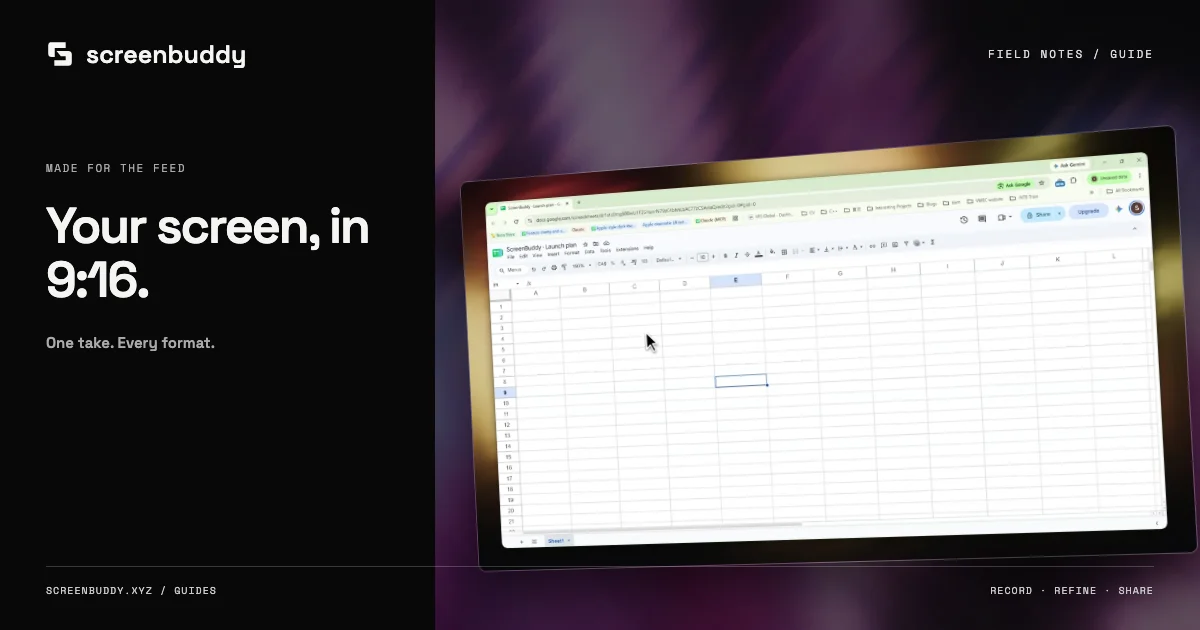
To make a vertical screen recording on Windows, record the screen normally in landscape, then switch the canvas to 9:16 in the editor. In ScreenBuddy, open Canvas, choose 9:16 (TikTok / Reels), and pick Fill portrait so the screen fills the frame, with your webcam stacked above it if you recorded one. Add zooms or callouts on the details, then export at 1080×1920.
Best for
- TikTok, Instagram Reels, YouTube Shorts, and LinkedIn clips made from a desktop app
- Repurposing a landscape tutorial into a short vertical cut
Not the best fit for
- Wide dashboards or spreadsheets where most of the screen must stay readable at once
- Recording a phone app: capture the phone itself instead
Record wide, publish tall
Windows screens are landscape, and most apps are designed for them, so record the way you normally would. Converting to 9:16 happens in the editor, which means one recording can become both a landscape tutorial and a vertical clip. Before recording, make the app window narrower and the text larger if you can: a vertical crop shows roughly a third of a 16:9 screen.
Switch the canvas to 9:16
Open the Canvas tab and choose 9:16, labelled TikTok / Reels. The same panel has 1:1 for square posts, 4:5 for the Instagram feed, 16:9 for YouTube and the web, and 10:16 for taller mobile layouts. Changing the ratio does not re-record anything, so you can try several and keep the one that reads best.
Fill portrait or Fit original
With 9:16 selected, ScreenBuddy offers two portrait layouts. Fill portrait fills the frame with your screen using a centered crop; if you recorded your webcam, it goes above the screen and the screen goes below. Hide the webcam and the screen fills the whole frame. Fit original keeps the entire landscape recording visible on a background, which is smaller but shows everything.
Use zooms and callouts to follow the action
A centered crop cuts off the edges, so the controls you click near the sides can fall out of frame. Add focus regions on those moments: a zoom moves the frame to the action, and a callout bubble magnifies a small control under the cursor. Play the whole clip and fix any moment where the pointer leaves the visible area.
Keep captions inside the safe area
Short vertical videos are often watched with the sound off, so captions matter. ScreenBuddy transcribes narration on your computer; in Fill portrait, captions resize to stay inside the portrait margins. Still check them against each platform’s own buttons and text, which cover the right edge and the bottom of the screen.
Export at 1080×1920 and test on a phone
Export an MP4 for TikTok, Reels, and Shorts; GIF has no sound and grows large quickly. Send the file to your phone or open a shared link there, and watch it at real size. If interface text is hard to read, zoom in further or simplify what you show rather than adding more on-screen text.
Related comparisons
- Rapidemo Alternative for Windows Screen Recording — Another Windows recorder that exports vertical and square video.
- Free Screen Studio Alternatives: Windows Recorders — OpenScreen also reframes for 9:16; compare it with Recordly and ScreenBuddy.
Frequently asked questions
Can Windows record the screen in vertical (9:16)?
Windows records the display in its own orientation, which is usually landscape. Record normally and convert to 9:16 in an editor; ScreenBuddy does this with its Canvas setting and portrait layouts.
Where does the webcam go in a vertical screen recording?
In ScreenBuddy’s Fill portrait layout the webcam sits above the screen, which matches how people watch short vertical videos. Hiding the webcam lets the screen fill the frame.
What resolution should a vertical screen recording be?
Use 1080×1920 (9:16) for TikTok, Instagram Reels, and YouTube Shorts.
Make your screen recording easier to follow.
Record, refine, and share from one app. Automatic zoom, cursor effects, and captions help make every step clear. Record and edit free. Exporting and shareable links need a subscription.