
Record Your Windows Screen With Audio
Record a Windows app with microphone narration and supported system sound. Test capture sources, avoid echo, balance audio, and export a video you can verify.
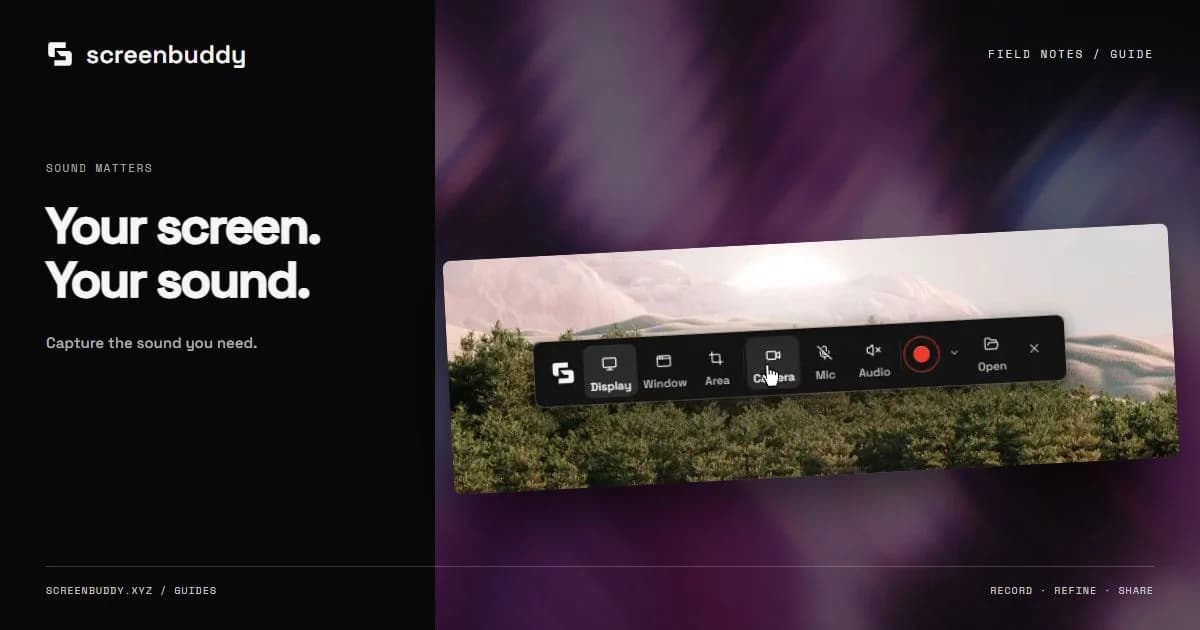
Quick answer
Record your Windows screen with microphone and system audio, then listen to a short test clip before the full take. In ScreenBuddy, choose a display, window, or area, enable the sources you need, and export MP4 to keep the sound. GIF exports are silent.
Best for
- Narrated app tutorials with microphone and system sound
- Checking audio sources before a longer Windows recording
Not the best fit for
- Silent GIF output when the explanation depends on narration
- Assuming every capture source provides system audio
1. Decide which sound belongs in the video
Microphone audio captures your voice and the room. System audio captures supported application playback. A software tutorial often needs narration but no application sound; a playback demonstration may need both. Select only the sources that help the viewer. If application audio is not required, leave it off instead of capturing notification sounds or a private call by accident.
2. Choose the exact microphone and output device
Connect the microphone or headset before opening the capture controls. Select the intended microphone by name and check that its input responds. Confirm where Windows is playing application sound, especially if you alternate between speakers, Bluetooth headphones, and a USB interface. Use headphones when recording narration over playback so the microphone does not capture the speakers and create echo.
3. Test the application and capture source together
Choose the display, window, or region in ScreenBuddy, then enable the needed audio sources. Play a sound in the target application and speak a short sentence. Stop after ten seconds and listen to the recording. Test the same target and devices you will use in the final take. Capture support, permissions, protected media, and device routing can change the result; a working microphone does not confirm that system sound also works.
4. Respond to missing audio before continuing
If ScreenBuddy reports that requested system audio is unavailable, decide whether the clip can proceed without it. Do not hide the warning and record a long demonstration expecting the sound to appear later. Check the selected application and Windows output device, close conflicting capture sessions, and try another supported capture target. If only narration is necessary, turn off system sound and make a new test take.
5. Balance narration and application playback
Review the result with headphones. Keep speech intelligible when the application plays sound; reduce background music or playback that competes with instructions. Use the Audio controls for the tracks available in your project, then listen again around soft words, pauses, and transitions. Processing features depend on the platform and cannot recover a source that was not recorded. If the test take clipped or captured the wrong microphone, correct the input and record again.
Troubleshoot the sound you actually hear
Listen to the saved test file before changing several settings at once. Use the symptom to narrow the next check, then repeat the same short recording. A microphone meter proves only that the microphone is receiving sound; it does not verify system audio in the saved file.
Test your microphone input in the browser
| Symptom | Check next |
|---|---|
| Voice missing | Select the intended input and check Windows microphone access for desktop apps |
| Application sound missing | Confirm its output device and the selected capture path; review any system-audio warning |
| Echo or doubled speech | Use headphones and avoid recording speaker playback through the microphone |
| Sound present in the editor but absent in delivery | Export MP4 rather than GIF, then check player mute and volume settings |
6. Export an MP4 and check its sound
Use MP4 for a video that needs audio. GIF is silent and is better suited to a short visual loop. Open the exported MP4 in a separate player, inspect the beginning and end, and confirm that both required sources are audible. If you publish a muted autoplay preview on a website, make the action understandable visually and provide captions for spoken content.
Built-in audio recording as an alternative
Xbox Game Bar can capture a supported application, with microphone and system-audio settings. Microsoft documents Windows+Alt+R to start or stop a recording and Windows+Alt+M to toggle the microphone. Its recordings are saved under Videos/Captures. Use a test clip to confirm that your application and required sound are supported before choosing the complete workflow.
Frequently asked questions
Can I record my microphone and application sound together?
Yes, when the chosen capture path and devices support both. Enable them deliberately, record a short sample, and listen before continuing.
Why does my recording echo?
A common cause is the microphone recording sound from the speakers as well as the direct system-audio track. Use headphones and check source routing.
Why does my GIF have no audio?
GIF does not contain audio. Export an MP4 when the recording needs narration or application sound.
Make your screen recording easier to follow.
Record, refine, and share from one app. Automatic zoom, cursor effects, and captions help make every step clear. Record, edit and export free with a watermark. Subscribe to remove it and share links.