
How to Magnify the Cursor in a Screen Recording
Add a magnifying callout bubble that follows the cursor in a Windows screen recording. Set magnification and size, and choose between a callout and a zoom.
Quick answer
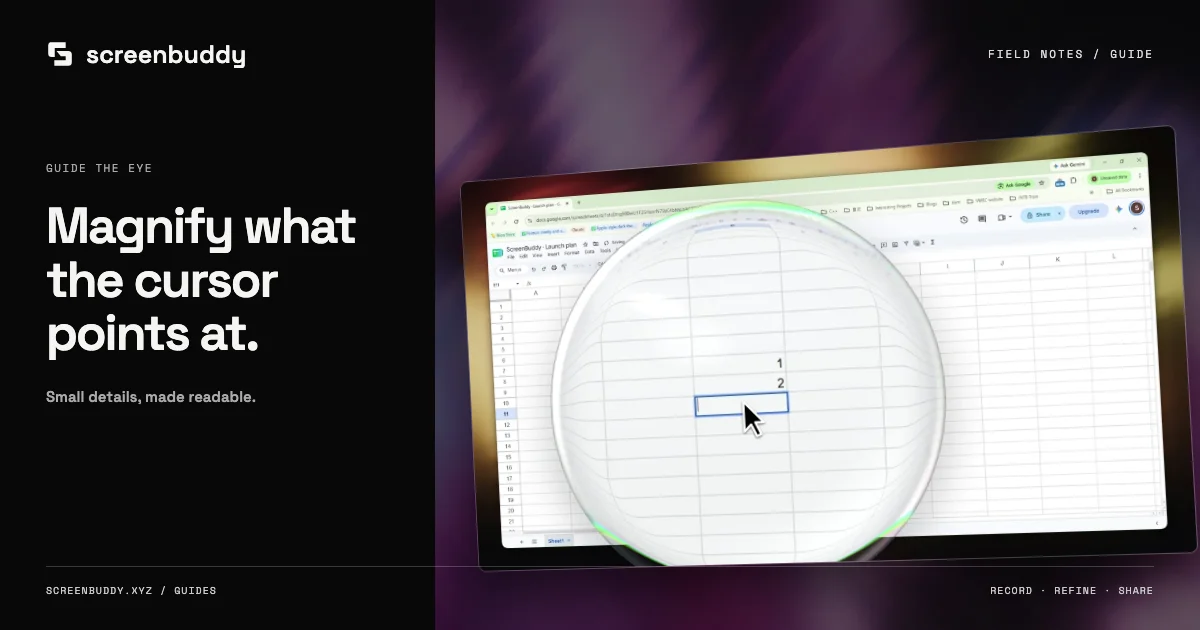
To magnify the cursor in a screen recording, add a callout bubble: a round glass lens that follows the pointer and enlarges what is under it while the rest of the screen stays in view. In ScreenBuddy, open the Focus tab, choose Add callout (or set Auto focus to Callout bubble), turn on Follow cursor, and pick a magnification from 1.25× to 3×.
Best for
- Small menus, dropdowns, form fields, and settings that are hard to read at full-screen size
- Tutorials where viewers need to see both the detail and where it sits on the screen
Not the best fit for
- Long stretches of typing or reading, where a steady zoom is calmer to watch
- Hiding sensitive information: use a privacy cover instead
Callout or zoom: pick by what the viewer needs
A zoom moves the whole frame closer, which is clear but hides the surrounding screen. A callout bubble magnifies only the area around the pointer, so viewers can read a small menu and still see where it is. Use a zoom when the detail is the only thing that matters for a few seconds. Use a callout when context matters, or when the pointer moves around a small area.
Record so the cursor stays editable
A callout that follows the cursor needs to know where the cursor was. ScreenBuddy records the pointer position separately from the screen image. On Windows this uses Windows Graphics Capture, available from Windows 10 version 2004 (build 19041). On older builds the recording falls back to capturing the system cursor in the image, and cursor effects are turned off.
Add a callout by hand
Open the Focus tab, move the playhead to where the small detail appears, and choose Add callout. Turn on Follow cursor if the pointer moves while you explain. Drag the ends of the callout on the timeline so it appears just before the action and disappears once the result is visible.
Or let Auto focus place callouts
Auto focus has two modes: Zoom in, which zooms the frame on your clicks, and Callout bubble, where a glass bubble follows the cursor and magnifies what is under it. Choose Callout bubble when most of the recording happens in small controls. Automatic callouts leave the zooms and callouts you placed by hand alone, so you can mix the two.
Choose magnification and size
Magnification options are 1.25×, 1.5×, 1.8×, 2.2×, and 3×. Start around 1.5× to 1.8× for menus; go higher only for very small text, because strong magnification makes motion feel faster. By default the bubble is large, about the height of the frame, because the point is to read what is inside it. Make it smaller if it covers the result of the action.
Dim the background only when it helps
Callouts do not dim the rest of the screen by default. Turn on Dim background when the screen is busy and viewers need help finding the bubble, then check that the dimmed area does not hide something they also need to see.
Check readability where people will watch
A callout that reads well on a 27-inch monitor may be too small in a phone feed or an embedded help-center player. Export a short test at your real size, or preview the recording at that width, and adjust magnification. For vertical videos, keep the bubble inside the portrait frame and clear of captions.
Related comparisons
- Rapidemo Alternative for Windows Screen Recording — A Windows recorder that relies on automatic zoom for small details.
- Screen Studio Alternative: Windows Screen Recorder — Screen Studio’s cursor effects compared for Windows users.
Frequently asked questions
What is a cursor magnifier in a screen recording?
It is a round lens, often called a callout bubble or loupe, that follows the pointer and enlarges the area under it, so small interface text stays readable without zooming the whole video.
Can I add a magnifier to a video I already recorded elsewhere?
You can add a callout at a fixed position on an imported video. Following the cursor needs pointer data, which ScreenBuddy captures when it makes the recording.
Does the callout appear in the exported video and in shared links?
Yes. The preview and the export use the same renderer, so the callout appears in MP4 and GIF exports and in videos shared as links.
Make your screen recording easier to follow.
Record, refine, and share from one app. Automatic zoom, cursor effects, and captions help make every step clear. Record and edit free. Exporting and shareable links need a subscription.