ScreenBuddy
Download Free

How to Record Your Screen in 2026: The Complete Guide

JS
Jiabin Shen
Updated Mar 31, 2026

Every major operating system now ships with a built-in screen recorder, but most people don't know where to find it or how to use it well. This guide covers every method — from free OS tools on Windows and Mac to browser-based recorders and professional editing workflows — so you can start recording in the next 60 seconds.

Key Takeaways

  • Windows, Mac, and Chrome all include free built-in screen recording tools.
  • The screen recording market is worth $2.1B and growing 17% annually (Mordor Intelligence, 2025).
  • Editing features like zoom effects and custom backgrounds separate professional recordings from raw captures.
  • Browser-based recorders require zero downloads and work on any operating system.
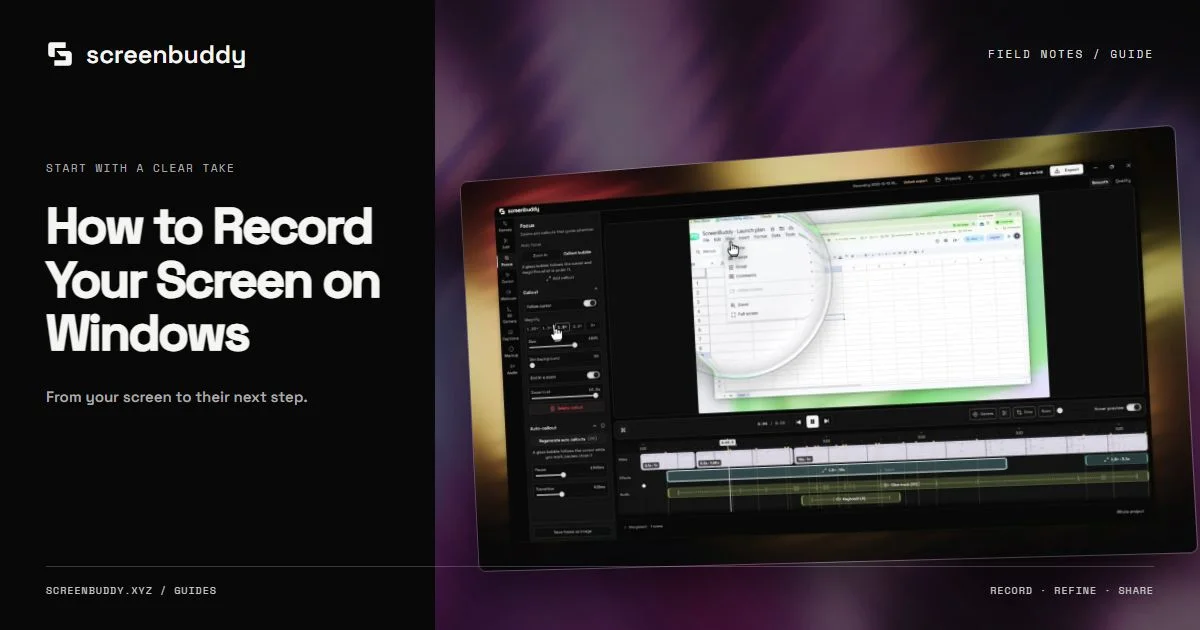
A complete visual guide showing screen recording workflows across Windows, Mac, and Chrome browsers in 2026.

1. Why Does Screen Recording Matter in 2026?

Screen recording is now a core business skill. Developers record bug reproductions, marketers create product demos, educators build tutorials, and remote teams replace meetings with async video walkthroughs. Here's why it matters across four key use cases.

Tutorials and Education

Online courses and YouTube tutorials rely on screen recordings. Visual demonstrations help learners follow along with software tasks far more effectively than text alone.

Product Demos and Sales

SaaS companies use screen recordings for product demos, onboarding videos, and feature announcements. A 2-minute demo can replace a 30-minute sales call.

Bug Reports and Support

Developers and QA teams record bugs in action. A screen recording eliminates the "works on my machine" problem and saves hours of back-and-forth.

Remote Work and Async Communication

Distributed teams use screen recordings for async updates, onboarding, and training. A 2-minute recording often replaces a 30-minute meeting.

Whether you're a teacher creating lesson content, a developer documenting code, or a marketer building product demos, knowing how to record your screen efficiently is a fundamental skill. But which method works best for your platform? Let's break it down.

2. How Do You Record Your Screen on Windows?

Windows 10 and 11 ship with a built-in screen recorder called the Xbox Game Bar. Despite the gaming name, it works for recording any application. No third-party software needed to get started.

Method 1: Xbox Game Bar (Built-in)

1

Open Xbox Game Bar

Press Windows + G on your keyboard. The Game Bar overlay appears on top of your current screen. If it doesn't open, go to Settings > Gaming > Xbox Game Bar and make sure it's enabled.

2

Start Recording

Click the Record button (the circle icon) in the Capture widget, or use the shortcut Win + Alt + R to start recording immediately.

3

Record Your Content

Perform the actions you want to capture. A small indicator appears in the corner showing elapsed time.

4

Stop Recording

Press Win + Alt + R again to stop, or click the Stop button on the recording indicator. Your recording saves automatically as an MP4 file.

5

Find Your Recording

Recordings are saved to C:\Users\[YourName]\Videos\Captures by default.

Limitations of Game Bar: It can only record one application window at a time, not the entire desktop. It also doesn't record File Explorer or the desktop itself. If you need full-screen recording or more flexibility, consider a dedicated app like OBS Studio.

Method 2: Snipping Tool (Windows 11)

Windows 11 added screen recording to the Snipping Tool. Open it from the Start menu, click the video camera icon to switch to recording mode, then click New. Select the area you want to record and click Start.

The Snipping Tool recorder exports as MP4 and supports audio recording. It's the simplest option for quick, area-specific screen captures on Windows 11.

3. How Do You Record Your Screen on Mac?

macOS holds 15.7% of the global desktop market (StatCounter, 2025), with over 100 million active Mac users worldwide (Eltima, 2025). Apple ships excellent built-in recording tools, so you can start capturing your screen without installing anything.

Method 1: Screenshot Toolbar (Recommended)

1

Open the Screenshot Toolbar

Press Cmd + Shift + 5 on your keyboard. A floating toolbar appears at the bottom of your screen.

2

Choose Recording Mode

Click "Record Entire Screen" to capture everything, or "Record Selected Portion" to select a specific area.

3

Configure Audio (Optional)

Click "Options" to enable microphone audio recording. You can also set a countdown timer and choose where to save.

4

Start Recording

Click the "Record" button. If you chose full screen, recording starts immediately.

5

Stop Recording

Click the Stop button in the menu bar, or press Cmd + Control + Esc. Your recording saves as a .mov file.

Want a deeper walkthrough? Our Mac screen recording shortcuts guide covers every keyboard combination you need.

Method 2: QuickTime Player

QuickTime Player has been available on macOS for years and remains a reliable option. Open QuickTime Player from your Applications folder, go to File > New Screen Recording, and click the Record button.

Mac Audio Recording Tip: By default, macOS screen recording doesn't capture system audio (only microphone). To record system audio, you'll need a free virtual audio driver like BlackHole or Loopback. For a full breakdown, see our guide to recording screen with audio on Mac.

4. How Do You Record Your Screen in Chrome?

Chrome and other modern browsers support screen recording through the Screen Capture API. Browser-based recording is a practical zero-install option for quick captures on any operating system.

In our testing, browser-based recorders handle 1080p capture reliably on modern hardware. They typically save as WebM files, which you can convert to MP4 using a free converter tool. The main tradeoff? You won't get built-in editing features like zoom effects or custom backgrounds.

Chrome Extensions for Screen Recording

Several Chrome extensions offer screen recording, including Loom, Screencastify, and Nimbus. These extensions add a recording button to your browser toolbar. However, most free tiers have significant limitations: recording time caps (often 5 minutes), mandatory watermarks, or cloud storage limits.

5. Can You Record Your Screen Online Without Downloading Anything?

Yes, and it's surprisingly capable. Remote work has driven 3.8% growth in the screen recording market (Mordor Intelligence, 2025), and online recorders serve users who can't install software on shared computers, Chromebooks, or locked-down work machines.

Record and Edit in One

No need to switch between a recorder and editor. Record your screen and immediately edit in the same tool.

Local Processing

Your video never leaves your device. All recording and editing happens locally for complete privacy.

No Watermarks

Export clean, professional videos without any branding or watermarks. Your content, your brand.

Works Everywhere

Any modern browser on any OS. Windows, Mac, Linux, ChromeOS, no compatibility issues.

Online recording is especially valuable for tutorial creators who want a quick workflow. Have you tried recording directly in the browser? For many people, it's all they need.

6. Best Free Screen Recording Tools Compared

There are more screen recording tools than ever, ranging from free built-in options to professional editing suites. Here's a side-by-side comparison of the most popular options in 2026.

FeatureOBS StudioGame BarQuickTimeLoom FreeBrowser-Based
PriceFreeFreeFreeFree (limited)Free
PlatformWin/Mac/LinuxWindows onlyMac onlyAny browserAny browser
Install RequiredYesBuilt-inBuilt-inExtensionNo
Full Screen RecordingYesSingle windowYesYesYes
System AudioYesYesNeeds pluginYesVaries
Zoom EffectsNoNoNoNoNo
Custom BackgroundsNoNoNoNoNo
MP4 ExportYesYesMOV onlyMP4WebM (convert to MP4)
WatermarksNoneNoneNoneLoom brandingNone
Time LimitUnlimitedUnlimitedUnlimited5 minUnlimited
Built-in EditorNoNoTrim onlyTrim onlyNo
Best ForStreaming + advancedQuick capturesBasic Mac recordingQuick sharingZero-install captures

For quick, no-frills captures, your OS built-in tools work perfectly. If you need advanced multi-source streaming capabilities, OBS Studio is unmatched. For professional recordings with editing on macOS, you'll want a dedicated app with zoom effects and custom backgrounds. Check our best screen recorder for Mac comparison for a deeper look.

7. How Do You Edit Screen Recordings?

Raw recordings are just the starting point. With 19% of marketers identifying screen-recorded video as their most-created content type (Wyzowl, 2026), editing is what separates amateur captures from professional content. Here are the most impactful edits you can make.

Add Zoom Effects

Zoom effects are the single most impactful edit for screen recordings, especially tutorials. They magnify important areas of your screen at precise moments, highlighting buttons before you click them or zooming into code you're explaining. In our testing, recordings with zoom effects keep viewers focused on the action instead of scanning the entire screen.

Apply Custom Backgrounds

Raw screen recordings often look plain, just a flat browser window or desktop. Adding a custom gradient background with padding, rounded corners, and a subtle shadow transforms the look entirely. It's a small change that makes a big visual difference.

Export as MP4

Browser-based recordings typically save as WebM files, which don't play on all devices. A WebM to MP4 converter handles the conversion right in your browser. MP4 is universally compatible. It works on YouTube, social media, iPhones, Android, and every video player.

Workflow Tip: For the fastest editing workflow, record directly in a tool with a built-in editor so your video is already loaded. You can also upload any existing recording file from Game Bar, QuickTime, OBS, or any other source.

8. What Are the Best Tips for Professional Screen Recordings?

Viewers judge your content by its production quality within seconds. We've found that these eight tips make the biggest difference, whether you're recording a quick walkthrough or a polished tutorial.

Record at 1080p or Higher

Set your display resolution to at least 1920x1080 before recording. Higher resolution means sharper text and clearer UI elements.

Get Your Audio Right

Use a dedicated microphone if possible. Even a $30 USB mic sounds dramatically better than a laptop's built-in mic. Bad audio is the top reason viewers stop watching.

Move Your Cursor Deliberately

Move your mouse slowly and purposefully. Avoid rapid, erratic cursor movements. Pause the cursor on elements before clicking them.

Clean Up Your Desktop

Close unnecessary tabs, hide bookmarks bars, minimize notification panels, and remove desktop clutter before recording.

Increase Browser Zoom Level

If recording a website, zoom your browser to 125-150%. This makes text and UI elements larger and easier to see in the final video.

Plan Before You Record

Outline your key points before hitting record. A planned recording requires less editing and sounds more confident.

Silence Notifications

Turn on Do Not Disturb or Focus mode before recording. Nothing ruins a professional recording like a notification popping up mid-take.

Keep It Under 10 Minutes

Attention spans are short. For tutorials, break long topics into shorter videos (5-10 minutes each). For bug reports, aim for under 3 minutes.

9. Screen Recording FAQ

How do I record my screen for free?

Use built-in tools like Windows Game Bar (Win+G) or macOS Screenshot Toolbar (Cmd+Shift+5). These free built-in recorders handle basic capture needs well. For editing features like zoom effects, dedicated apps offer more control.

How do I screen record on Windows?

Press Windows+G to open the Xbox Game Bar, then click the Record button or press Win+Alt+R. The recording captures the active window. To stop, press Win+Alt+R again. Recordings save as MP4 files in your Videos/Captures folder.

How do I screen record on Mac?

Press Cmd+Shift+5 to open the Screenshot Toolbar. Choose "Record Entire Screen" or "Record Selected Portion," then click Record. To stop, click the Stop button in the menu bar or press Cmd+Control+Esc. macOS holds 15.7% of the global desktop market (StatCounter, 2025), so Mac recording tools are widely supported.

Can I record my screen in Chrome without installing anything?

Yes. Browser-based tools use the Screen Capture API to record your screen directly in Chrome. No extensions or downloads required. These tools work on any OS and process video locally in the browser.

What is the best screen recorder in 2026?

It depends on your needs. For quick recordings, use your OS built-in tools. For professional recordings with zoom effects and custom backgrounds on macOS, a dedicated app gives the best results. For advanced streaming, OBS Studio is ideal.

Related Articles

Start Recording and Editing on Your Mac

Record your screen, add zoom effects, apply custom backgrounds, and export as MP4, all on your Mac.

One-time purchase. No watermarks. No time limits.