Open on the product working.
The first three seconds decide whether the rest is watched. Never open on a logo.
A whole-video starter or a motion beat from the template gallery.
Record the actual screen, then build it into a launch film — scenes in the order that tells the story, titles that follow your brand, and a lens that puts the eye exactly where the product wins. Nothing generated, nothing faked.
No card. Record, edit, and preview free. A one-time license is required to save or export.
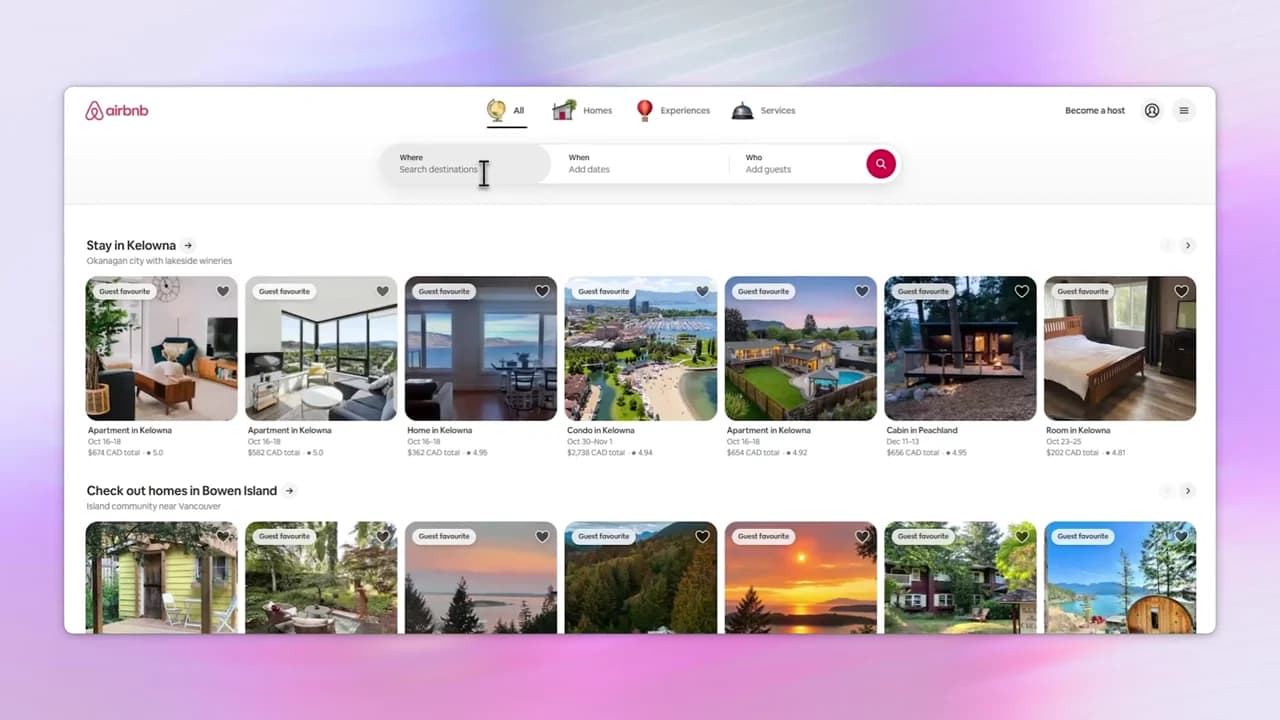
Drag the divider to compare the founder’s raw walkthrough with the version edited in ScreenBuddy.
Founder-created example using the same source recording on both sides. No customer result or editing-time claim is implied.
The structure is not a mystery — hook, problem, solution, proof, ask. What is hard is authoring each beat without a motion designer.
The first three seconds decide whether the rest is watched. Never open on a logo.
A whole-video starter or a motion beat from the template gallery.
One specific, recognisable annoyance — the reason the product exists at all.
A title card styled by your brand kit, so the type is already yours.
Complete actions, not a feature list. Something new roughly every twenty seconds.
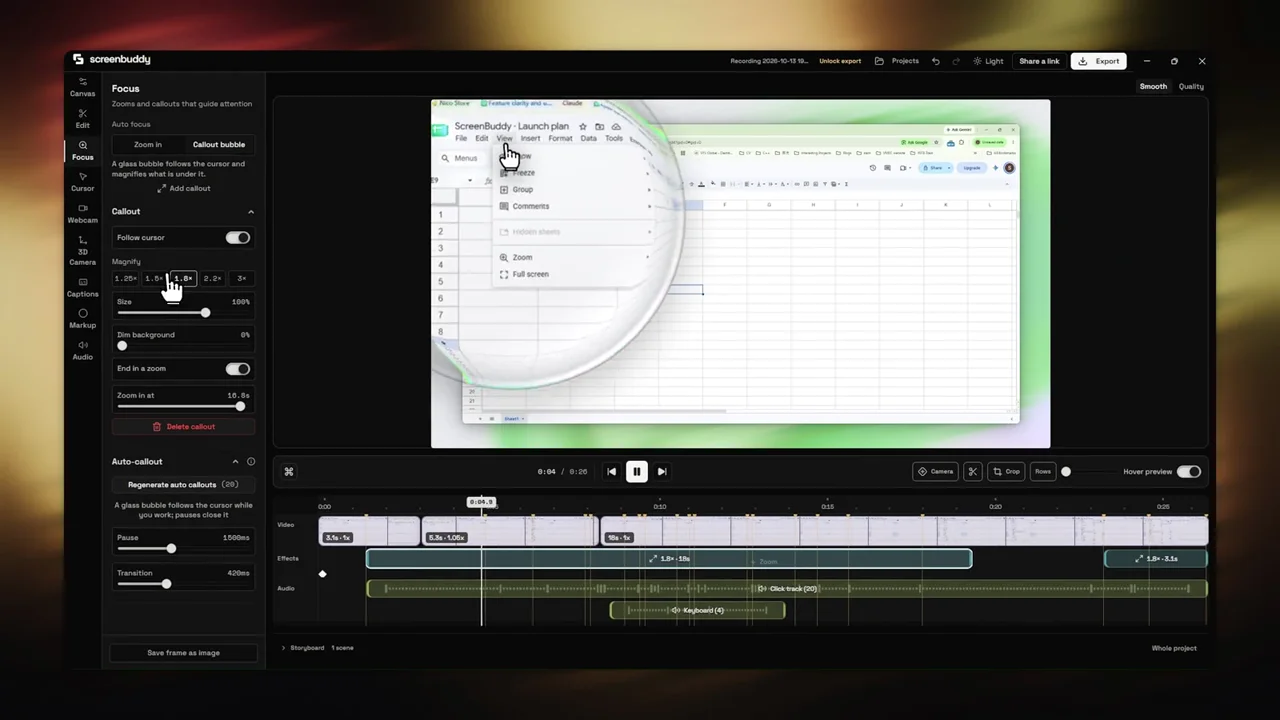
Auto-zoom on your recorded clicks, callouts for the detail, and the lens for the eye.
The number, the comparison, or the name that makes the claim land.
Big-number and logo layouts from the 74 starting points in the gallery.
One action, one URL. Two calls to action is the same as none.
An end-card preset that reads your logo pair straight from the brand kit.
Timings describe the conventional structure of a 60–90 second launch video, not a claim about any particular one.
The release that finished the composition layer: a project is a storyboard now — several scenes, in the order you choose, each with the title, framing, and focus it needs.
A project is a sequence now, not one clip. Record a second scene into a project you already have, import a video file, or open on a blank title card — then drag them into the order that tells the story.
44 title and media cards, plus motion beats, shots, and whole-video starters — 74 places to begin. They read type from your brand kit instead of freezing their own, so restyling Title restyles every title already on the timeline.
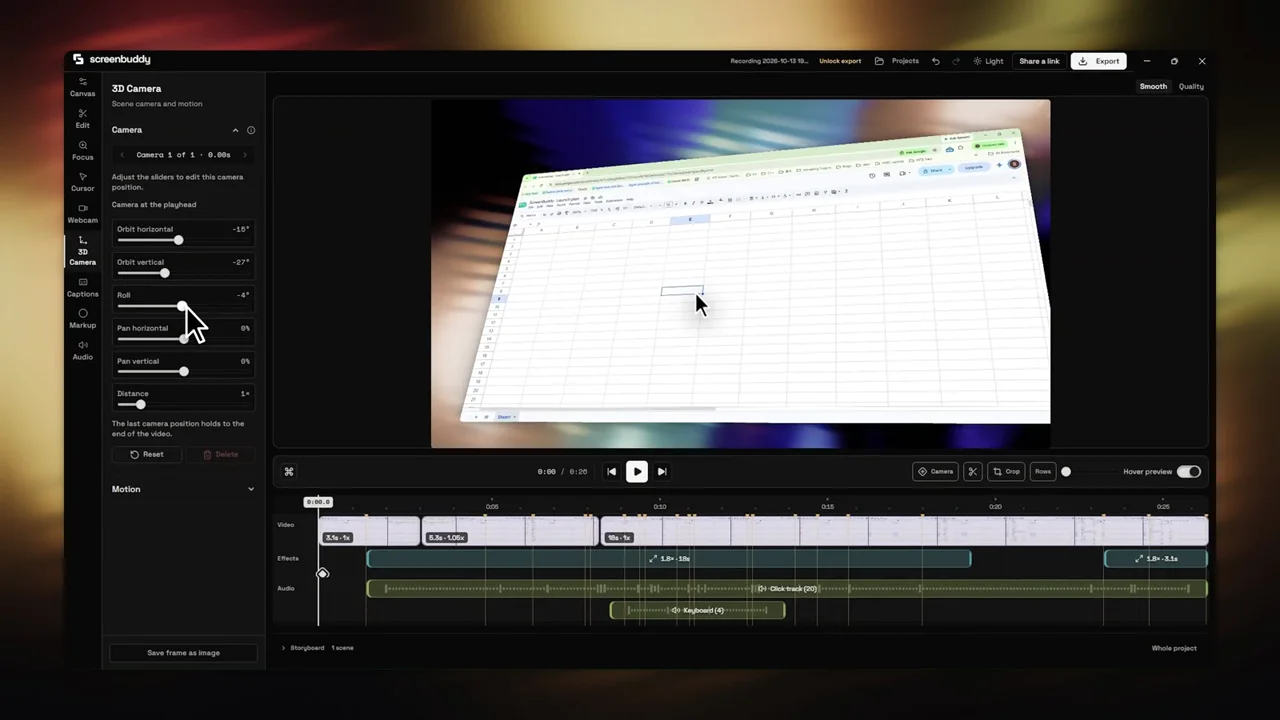
Depth of field modelled as real optics — an aperture from f/1.4 to f/16 — and rendered the same way in the preview and the export. Aim it with a focus anchor, size the sharp area directly, and carry the camera through several poses inside a single shot.
Local transcription now ships for Windows and Intel Macs, not only Apple silicon. Cues split where they are readable, and the Highlight preset times the words as they are spoken.
Screen recording, auto-zoom, and cursor choreography are the ingredients underneath — not the pitch.

ScreenBuddy detects clicks and adds smooth zooms so viewers never have to search for the next action.

Dim the surrounding interface and guide attention through menus, settings, and multi-step flows.

Lift one important region into a readable close-up when a small control or detail deserves the whole frame.
The recording is the raw material. This is the composition layer that turns it into something you would put in front of an audience — without leaving the app or uploading a file anywhere.

A local, loopback-only server — off until you switch it on — hands the AI you already use 16 tools on the document in front of you: insert a template, keyframe the camera, aim the lens. Every step is checkpointed, so anything it does can be undone. ScreenBuddy ships no model and no API key, and export stays a gesture you make yourself.
A project is a sequence of scenes you drag into the order that tells the story, then split, merge, rename or duplicate. The trailing + Scene card records a new clip into the project you already have, imports a video file, or opens a blank title card.

Depth of field modelled from f/1.4 to f/16: aim the focus anchor or let it follow the cursor, then size the sharp area yourself. Keyframe the camera through several poses inside one shot — the preview shows exactly what the export will render.
44 title and media cards, plus motion beats, shots and whole-video starters — 74 starting points. Type comes from six named brand styles, so restyling Title restyles every title already on the timeline, in the preview and the export alike.

Set the capture into a 3D MacBook shell, or the flat bezel when the product should stand alone. Every frame now renders through the same camera, so the plain one no longer costs you the moves.

48 backdrop presets — 10 gradients, 10 radiants, 18 wallpapers and 10 animated — or bring your own, with padding, corner radius and shadow set around the capture.

Text, arrows and shapes land on the moment you are naming, so the viewer reads what a control is called while you are still saying it.

Local English transcription now runs on every platform ScreenBuddy ships — Apple silicon, Intel Macs and Windows alike. Six presets, and the Highlight preset times each word as it is spoken.

Record a voiceover into a scene, then set a bundled track under the film. 11 of the 14 tracks carry a measured tempo, so a zoom, a cut or a title card dragged near a beat lands on it.
A launch film is the video you plan for. The same project, scenes, and brand kit turn out the feature announcement, the onboarding walkthrough, and the release clip that follows it.

Land the value in the first three seconds. Zoom into the moment that matters, cut the setup, and export a film that carries a launch post or sits at the top of a landing page.
Each clip is a founder-created example standing in for that use case. No customer result or editing-time claim is implied.
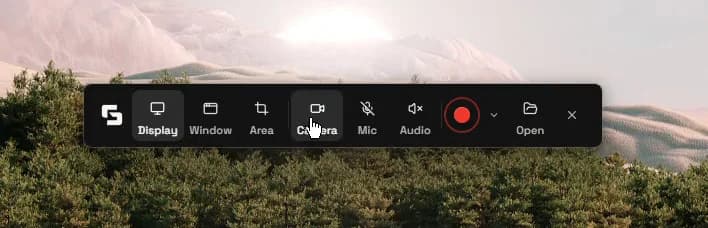
Capture the feature or flow with your screen, your microphone, and the pointer tracked as data rather than burned into the picture.
Order the scenes, drop in the title and end cards, cut the dead time, and place the zooms, callouts, and focus where the story needs them.
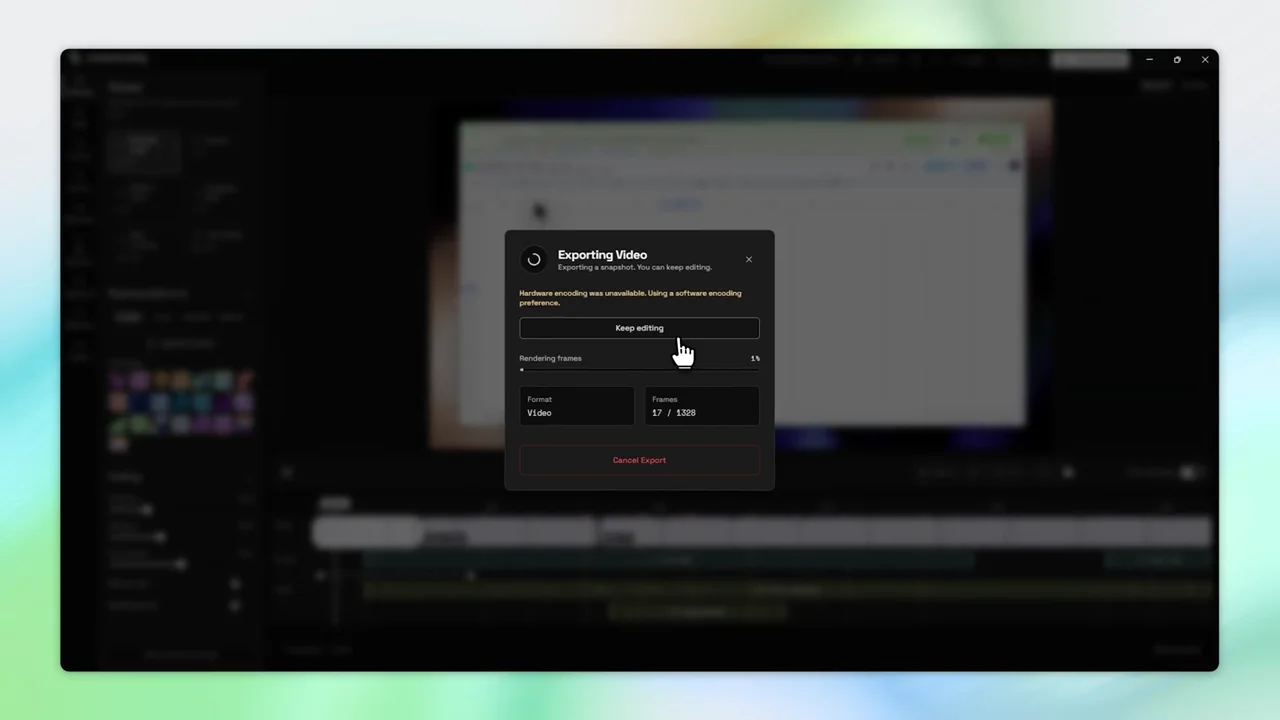
Choose a horizontal, square, or vertical frame and save the licensed MP4 or GIF locally.
Public replies to founder launch posts on Reddit and X. These are community comments, not verified-purchaser testimonials.
Cool idea I'm now using openscreen but should try it
Damn.. I was looking for that
Ok I am intrigued. Will be trying this 👍
That's an awesome app!
Cool! Good idea. I am also the one looking for a screen recording app with a reasonable price.
This is actually something I've been needing, especially at that price point
Looks like an interesting tool; has some features I wish ShareX did. Will have a look later. Thanks for sharing.
absolute cinema
Each tool serves a different job. These short summaries help you decide when ScreenBuddy is the better fit.
Screen Studio is best for: A polished Mac-first recording workflow.
Choose ScreenBuddy when: Choose ScreenBuddy when you need spotlight and lightbox alongside auto-zoom, local editing, Windows support, and a one-time license.
Read the full comparisonLoom is best for: Fast link sharing and asynchronous team communication.
Choose ScreenBuddy when: Choose ScreenBuddy when local media processing, ownership of the finished file, and timeline-level attention control matter more than cloud sharing.
Read the full comparisonOBS is best for: Live production, streaming, and highly configurable capture.
Choose ScreenBuddy when: Choose ScreenBuddy when you want recording and a purpose-built product-demo editor in the same app without manual zoom keyframing.
Read the full comparisonMost teams make a handful of launch videos a year — which is exactly why a subscription is the wrong shape for this. Try the complete workflow first, then pay once, and keep the app for the next launch.
One-time purchase · no subscription
Checkout and license delivery are handled by Lemon Squeezy. Internet is required for activation and update checks.
Need 5+ licenses? Contact usNo “free” ambiguity: Record, edit, and preview free. A one-time license is required to save or export.
It records, but that is the first step rather than the product. A recording opens as a project you compose: a storyboard of scenes in the order you choose, title and end cards from a template gallery that reads type and logos from your brand kit, a modelled lens and a keyframed camera, callouts, sound, and captions. The recorder is the ingredient; the finished launch or demo video is the point.
No card. Record, edit, and preview free. A one-time license is required to save or export.
No. The current ScreenBuddy license is a one-time $29.99 purchase. Future updates are included in the current offer. There is no monthly or annual subscription.
ScreenBuddy supports macOS 12 or later on Apple Silicon and Intel Macs, plus 64-bit Windows 10 and Windows 11. The full recording and editing workflow is available on both Mac and Windows.
Yes. Transcription runs locally on macOS 12+ (Apple silicon and Intel) and Windows 10+, so the audio never leaves the machine. Earlier releases shipped the speech model for Apple silicon only; it is now built for Intel Macs and Windows as well.
Recording, editing, and media processing happen locally on your device. An internet connection is required for license activation and update checks; ScreenBuddy does not upload your recording to a cloud editor.
A paid license unlocks MP4 and GIF export. ScreenBuddy includes common horizontal, square, and vertical aspect-ratio options for product pages, social posts, and documentation.
No — and that is deliberate. Every frame comes from your own recording, so the video cannot show an interface your product does not have. AI appears in two narrow places: captions, transcribed locally on your machine, and an optional local connection that lets your own AI assistant drive the editor. That connection is off by default, listens only on this machine, and ScreenBuddy ships no model and no API key of its own. Exporting stays a deliberate human action.
The current terms allow personal and internal business use. If you need five or more licenses, contact us so we can help with the purchase.
Download the free trial, record the thing you are about to announce, and build the whole video before you decide whether to export it.
Record, edit, and preview free. A one-time license is required to save or export.
Build videos around one audience, one outcome, and one destination.
Browse the guides HOW-TOCapture, audio, region, and quality workflows for Mac and Windows.
Browse the guides COMPARISONSHonest comparisons against Loom, OBS, Camtasia, and more.
Compare the tools