
Best Screen Recorder for Windows
Choose a Windows screen recorder for your actual task: built-in capture, OBS streaming, or ScreenBuddy editing with zoom, captions, and local MP4 or GIF export.
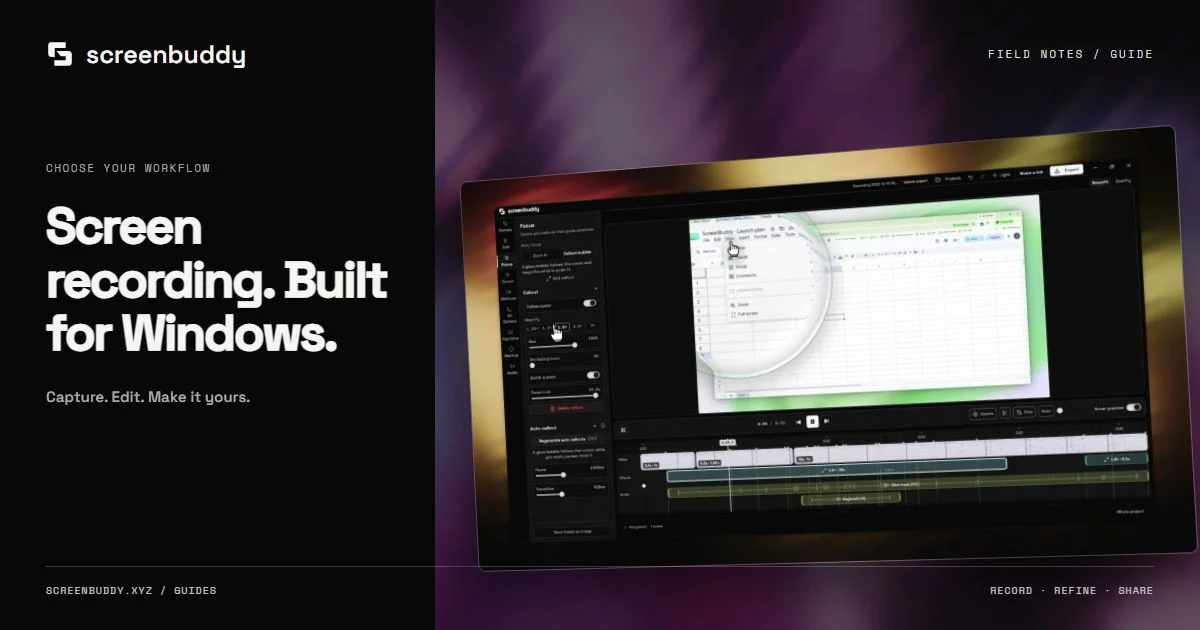
See ScreenBuddy turn a recording into a clear demo on Windows
Capture a display, window, or selected area. Trim pauses and guide attention with editable zoom and cursor effects in the same desktop app.
Record, edit and export free with a watermark. Subscribe to remove it and share links.
Quick answer
The best Windows screen recorder depends on the result you need. Start with built-in capture for a quick clip, OBS for configurable scenes and streaming, or ScreenBuddy for a local capture-and-edit workflow with automatic zoom, captions, and MP4 or GIF export.
Which Windows recorder fits your task?
| Recorder | Best starting task | Editing and delivery |
|---|---|---|
| Snipping Tool (Windows 11) | A quick selected-area clip | Save the recording or edit it in Clipchamp |
| Xbox Game Bar | A supported app or game with audio | MP4 capture; plan a separate editing step |
| OBS Studio | Live scenes, multiple inputs, or streaming | Detailed capture controls; edit recordings separately |
| ScreenBuddy | An edited software tutorial or product demo | Editable zoom, captions, MP4/GIF, and optional unlisted sharing |
Best for
- Windows tutorials, product walkthroughs, and support clips
- A local recording and editing workflow with readable output
Not the best fit for
- Live streaming or a team review system with comments
- Assuming every PC supports the same capture and audio options
Choose the deliverable before the recorder
A quick reference clip, a narrated lesson, a live broadcast, and a polished product demo are different jobs. Write down where the result will be watched, whether it needs sound, and which editing corrections you must make. Compare recorders using the same short task rather than an effects checklist. Include a small menu, a moving cursor, a spoken sentence, and a result screen in the test.
Built-in Windows capture for simple clips
Xbox Game Bar provides application recording with microphone and system-audio options. Windows 11 Snipping Tool provides region recording. Check the version installed on your machine and confirm its audio options. These are sensible starting points when you need a clip quickly and can use the captured result as it is. Desktop surfaces, protected content, and some applications may have capture limitations.
OBS for configurable capture and streaming
OBS Studio is free and open source. Its scenes, sources, audio controls, and streaming output suit a recording setup with several inputs or a live broadcast. That flexibility takes setup time. If your final video needs carefully timed post-recording zoom and captions, include a separate editing stage in the comparison rather than treating capture alone as the completed workflow.
ScreenBuddy for a finished Windows walkthrough
ScreenBuddy combines display, window, or area recording with a desktop timeline. Adjust zoom, smooth the cursor, crop, trim pauses, set a background, review captions, and export a local file. It is aimed at tutorials, support explanations, and product demos. Record and edit free to evaluate the workflow; exporting requires a subscription or a valid legacy license. It is not a streaming application or a comment-based review workspace.
Compare the free capture and paid export boundaries
Snipping Tool and Xbox Game Bar are included with supported Windows installations. OBS is free and open source. ScreenBuddy lets you record, edit, and save projects free; local video export and unlisted sharing require a subscription, while valid legacy licenses still unlock local export. For a fair comparison, include the editor and publishing service you would need after recording. A free capture can be the right choice when the result needs no further correction.
Check the capture path on your PC
The Windows installer targets Windows 10 or later on x64. Editable cursor capture requires Windows Graphics Capture on Windows 10 version 2004, build 19041, or later. Fallback capture includes the system cursor and disables replacement cursor effects. Test microphone and system audio in your actual application, including headphones if you use them. An enabled toggle does not prove that the requested track was recorded.
Compare output rather than promises
Watch each test at the intended display size. Can you read the smallest control? Does narration stay clear when application sound plays? Can you fix a focus move without recording again? Is the exported file accepted by your destination? Canvid, FocuSee, and Cap are additional Windows options covered in this site’s comparisons. Check their current platform, editing, and license details before deciding.
Current competitor snapshot
OBS Studio · OBS Studio
FreeOpen-source recording and live-streaming built around scenes, sources, filters, and detailed output control.
Best fit: Users who need multi-source capture, live streaming, and detailed output configuration. Tradeoff: Its main tools handle live capture, scenes, and streaming; post-recording cuts and annotations require a separate editor.
Platforms: macOS, Windows, Linux · Verified Oct 9, 2026
Frequently asked questions
Does Windows include a screen recorder?
Yes. Xbox Game Bar and Windows 11 Snipping Tool provide built-in recording options. The available capture and audio controls vary by tool and installed version.
Is ScreenBuddy available for Windows?
Yes. A Windows x64 installer is available for Windows 10 or later. Version 1.8.1 is available from the download page and GitHub release.
Should I choose OBS or ScreenBuddy?
Choose OBS when configurable live sources or streaming are central. Evaluate ScreenBuddy when the main job is recording and editing a readable local tutorial or demo.
Which recorder should I try first for a free Windows clip?
On Windows 11, try Snipping Tool for a selected area or Xbox Game Bar for a supported application. Choose OBS when you need scenes or streaming. ScreenBuddy recording and editing are free, but exporting the finished video requires a subscription or valid legacy license.
Make your screen recording easier to follow.
Record, refine, and share from one app. Automatic zoom, cursor effects, and captions help make every step clear. Record, edit and export free with a watermark. Subscribe to remove it and share links.