
Screen Recorder With Auto Zoom for Windows
Use automatic zoom and cursor callouts to make Windows recordings readable. Adjust timing, preserve context, and review Focus controls in the 1.8.0 release.
Quick answer
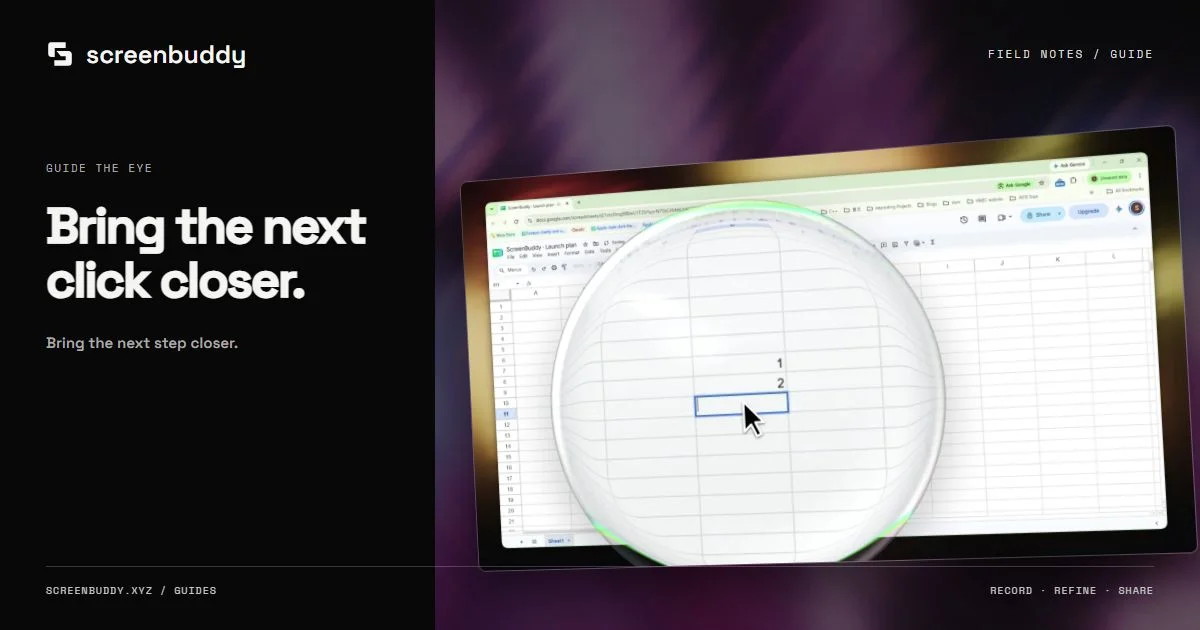
Automatic zoom brings recorded clicks into focus. In ScreenBuddy, review each zoom on the timeline, adjust its timing, and return to a wider view when the viewer needs context. Use a cursor callout for small details that should stay connected to the rest of the screen.
Best for
- Menus, spreadsheet formulas, and small controls
- Product demos that need a clear focal point
Not the best fit for
- Constant camera movement during detailed instructions
- Editable cursor effects from a fallback capture that includes the system pointer
Start with readable source footage
Zoom cannot restore details missing from the capture. Enlarge the application’s own text where possible and record the relevant window rather than an unnecessarily wide desktop. Before adding effects, watch the unedited take at the size viewers will see. Identify the specific controls that are too small and the moments when the result needs a closer look.
Let automatic zoom create a first pass
Record a short task with a supported capture path that retains cursor and click information. ScreenBuddy uses click activity to generate zoom regions. Treat these regions as a draft. Several clicks may belong to one action, while a quiet result screen may deserve a hold. Keep movements that explain the task and remove movements that make the interface harder to locate.
Adjust the start, hold, and return
Begin a zoom just before the small control matters, hold it while the action completes, and return to a wider frame when context becomes useful. Avoid alternating rapidly between close and wide views. Keep the pointer, menu, and relevant result visible together. Test the timing at normal playback speed; a pleasing paused composition can still feel abrupt in motion.
Use a callout for a local detail
A magnified cursor callout can keep a small area readable while the rest of the application remains visible. It suits a compact field or small control where a full-frame zoom would hide context. Check that the callout does not cover the destination of the next click. Compare the callout and zoom versions using the same take, then choose the simpler explanation.
Choose between zoom, a cursor callout, and a manual hold
Use a full-frame zoom when the viewer only needs one region. Use a cursor callout when a small detail needs magnification while the surrounding app stays visible. Place a manual focus region when an important result appears without a click, such as a completed chart or a validation message. In the 1.8.0 editor, Focus contains attention controls and Cursor adjusts pointer presentation. Test one approach at a time so the viewer can follow the same control from its original position to the enlarged view.
Keep cursor treatment calm
Use smoothing and a cursor size that remains legible at the published size. Click feedback should identify the action without becoming the subject of the video. On Windows, editable cursor capture needs the native Windows Graphics Capture path on a supported system. A fallback recording contains the system cursor and disables replacement effects; do not layer a duplicate pointer over that footage.
Inspect the final output at its real size
Export a short test and embed or play it at the intended dimensions. Check that text stays readable during movement and that each focus effect points at the right action. Captions and privacy covers must remain clear while the view changes. Use a quiet canvas rather than adding more movement to compensate for an unreadable recording.
Frequently asked questions
Can I change automatic zoom after recording?
Yes. ScreenBuddy’s automatic zoom regions are editable. Adjust timing and framing after reviewing the actual task.
Does auto zoom work identically on every Windows PC?
No. Cursor and click capture depend on the capture path and system. Test the native path and check fallback warnings before relying on automatic effects.
Where are zoom controls in 1.8.0?
The 1.8.0 release groups attention effects under Focus. These controls are included in the published 1.8.0 installer.
Make your screen recording easier to follow.
Record, refine, and share from one app. Automatic zoom, cursor effects, and captions help make every step clear. Record and edit free. Exporting and shareable links need a subscription.