ScreenBuddy
Get it — $9.99
macOS 12+ · M1/M2/M3 & Intel
Windows Coming Soon
v1.4.1 — Spotlight & Lightbox Effects

The Screen Recorder That Auto-Zooms, Spotlight & Lightbox on Your Clicks

Not just auto-zoom, also spotlight and lightbox for screen recording, along with region cropping, annotations, backgrounds, and trim/crop, all in one app.

One-time purchase|30-day money-back|67% OFF — EARLY ACCESS
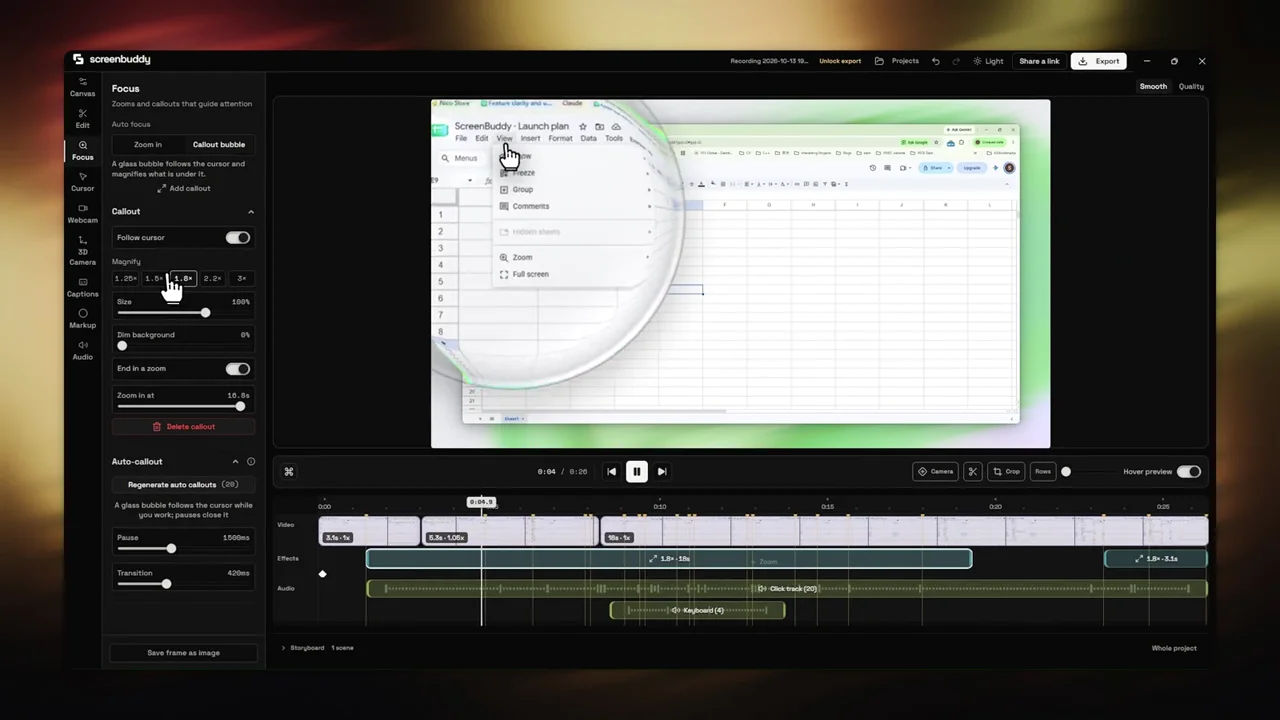
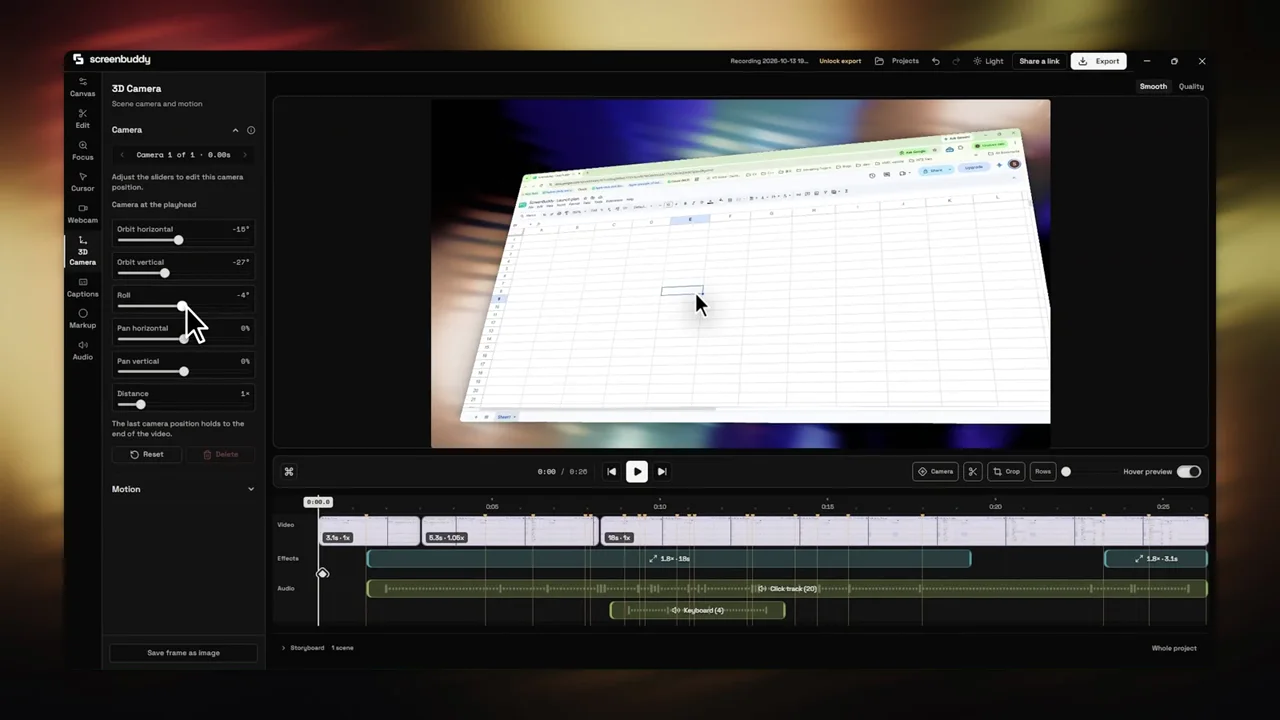
ScreenBuddy macOS app interface showing the video editor with zoom effects, timeline, and background controls
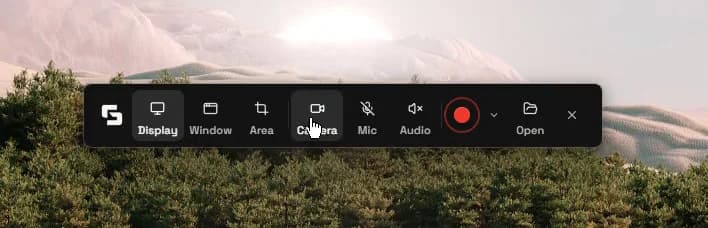
RECORDING HUD
ScreenBuddy recording HUD showing webcam, hide HUD, sound, microphone, recording, timer, and open file controls
Highlight on Every Click
100% Offline & Private
One-time Purchase — No Subscription
macOS · Windows Coming Soon
WORKFLOW

How It Works

Create polished screen recordings in three simple steps

1

Record

Capture your screen, window, or app with system and microphone audio

2

Edit

Add zoom, spotlight, and lightbox effects, annotations, backgrounds, and trim your footage

3

Export

Save as MP4 in your preferred resolution and aspect ratio

Get ScreenBuddy — $9.99
Auto-Zoom Guide →Best Mac Screen Recorders →Mac Recording Guide →
FEATURES

Record Once, Edit Everything

Record, edit, and export polished videos with powerful built-in tools — now with spotlight, lightbox, and region cropping

KEY DIFFERENTIATOR

Auto-Zoom That Follows Your Clicks

ScreenBuddy watches where you click and automatically zooms in with smooth animation — from 1.25x to 5x. Your viewers see exactly what matters, without you lifting a finger.

KEY DIFFERENTIATOR

Spotlight Effect

Guide viewer attention with a dynamic spotlight that follows your cursor. Darkens the background while highlighting a circular region — perfect for demos and tutorials.

KEY DIFFERENTIATOR

Lightbox Effect

Zoom into any area of your recording with an enlargement card that pops up with smooth animation. Crop a region and display it at up to 95% screen size with custom corners and transitions.

Insert Annotations

Add text overlays, images, arrows, and shapes with full styling control. Customize fonts, colors, borders, and shadows for every element.

Change Backgrounds

Choose from 18 gradient presets, solid colors, or custom images. Add padding, corner radius, and shadow effects for a polished look.

Customize Cursor Size

Adjust cursor size to make it more visible in your recordings. Perfect for tutorials and presentations where viewers need to follow along.

Webcam Recording

Overlay your webcam feed on screen recordings for a personal touch. Perfect for product demos, tutorials, and presentations.

Zoom Effects Guide →Annotations Guide →Backgrounds Guide →High Quality Recording →
USE CASES

Built for People Who Ship

Whether you demo, teach, or document — ScreenBuddy fits your workflow

Product Teams

Ship feature demos and bug reports with auto-zoom that highlights exactly what you clicked.

Learn more →

Educators & Course Creators

Record tutorials with large cursor, annotations, and backgrounds that keep students focused.

Learn more →

Developer Advocates

Create documentation videos and API walkthroughs with clean, branded exports.

Learn more →
WHY SCREENBUDDY

The ScreenBuddy Difference

Three things no other Mac screen recorder offers together

Auto-Zoom on Every Click

The only Mac screen recorder that automatically zooms where you click. No manual keyframing.

100% Offline & Private

Everything stays on your Mac. No cloud uploads, no accounts, no tracking.

$9.99 Once, Forever

No subscription. No yearly renewal. Pay once, get lifetime updates.

COMPARISON

Why Not Screen Studio, Loom, or OBS?

Great tools — but ScreenBuddy fills the gaps they leave

vs. Screen Studio

  • Auto-zoom on every click, not just manual
  • $9.99 vs $89/year subscription
  • Spotlight & lightbox effects included
  • One-time purchase — no renewal
Read full comparison →

vs. Loom

  • Auto-zoom effects on every click
  • No monthly subscription ($9.99 once)
  • Works completely offline
  • No recording time limits
Read full comparison →

vs. OBS

  • Auto-zoom on clicks
  • Built-in video editor
  • Custom backgrounds included
  • No learning curve
Read full comparison →

2-YEAR COST COMPARISON

TOOLMODELCOSTLEVEL
Loom Business$12.50/mo$300
Screen Studio$89/year$178
OBS StudioFree$0
ScreenBuddyOne-time$9.99
Get ScreenBuddy for $9.99
PRICING

Simple, One-Time Pricing

Pay once, use forever. No subscriptions.

EARLY ACCESS

ScreenBuddy for Mac

$29.99$9.99
SAVE 67% DURING EARLY ACCESS
Price increases to $29.99 after Early Access ends
Pay once, use forever
  • Screen recording with system & mic audio
  • Region cropping — record any part of your screen
  • Manual & auto zoom effects (1.25x-5x)
  • Spotlight effect — guide attention to your cursor
  • Lightbox effect — zoom into any area with a pop-up card
  • Text, image, and arrow annotations
  • 18 gradient backgrounds + custom images
  • Trim, crop, and resize
  • MP4 export
  • Keyframe timeline editor
  • Multiple aspect ratios
  • Lifetime updates included
  • Works entirely offline
Get ScreenBuddy — $9.99
30-day money-back guarantee
v1.4.1|macOS 12+|Intel & Apple Silicon
Or try the free online tools first
FAQ

Frequently Asked Questions

What are the system requirements?
ScreenBuddy requires macOS 12 (Monterey) or later, which includes macOS Ventura, Sonoma, and Sequoia. It runs natively on both Intel (x64) and Apple Silicon (M1, M2, M3, and M4) Macs with full hardware acceleration. The app is lightweight at under 50 MB and requires no additional dependencies or runtime installations. Screen recording uses the native macOS screen capture API for optimal performance, and the built-in video editor processes frames using your GPU for smooth timeline scrubbing and real-time preview of zoom, spotlight, and lightbox effects. A Windows version is currently in development and coming soon.
Is this a one-time purchase or subscription?
ScreenBuddy is a one-time purchase at $9.99 during Early Access (normally $29.99). You pay once and use the app forever, including all future updates and new features at no extra cost. There are no monthly or yearly subscription fees, no usage limits, and no hidden charges. This pricing model is intentionally different from competitors like Loom ($12.50/month) and Screen Studio ($89/year), which require ongoing subscriptions that add up quickly. With ScreenBuddy, your total cost over two years is still just $9.99 compared to $300 for Loom Business or $178 for Screen Studio.
What export formats are supported?
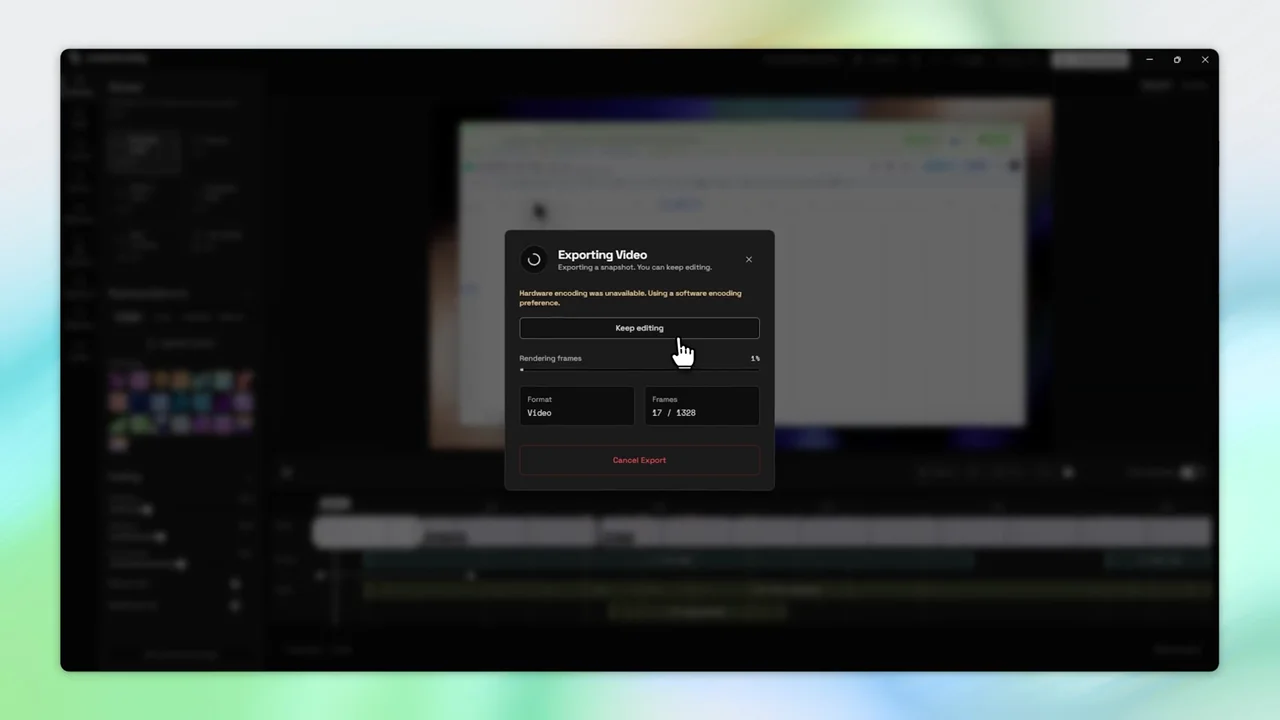
ScreenBuddy exports recordings as MP4 (H.264 codec) and GIF. MP4 exports support multiple quality presets from standard 720p up to the full resolution of your display, with configurable bitrate for optimal file size. You can also choose from several aspect ratios including 16:9, 4:3, 1:1 (square for social media), and 9:16 (vertical for mobile). GIF export is ideal for quick documentation, Slack messages, GitHub pull requests, and social media posts where autoplay is important. All processing happens locally on your Mac using hardware-accelerated encoding, so exports are fast and your footage never leaves your device.
Does ScreenBuddy require an internet connection?
No. ScreenBuddy works entirely offline with no internet connection required at any point. All screen recording, video editing, zoom effect processing, and exporting happens locally on your Mac. Your recordings are never uploaded to any cloud service, which means your sensitive content stays completely private. This is particularly valuable for recording proprietary software, internal tools, confidential presentations, or client work where data privacy is critical. Unlike cloud-based tools such as Loom that require uploading your video for processing, ScreenBuddy performs all encoding and rendering on your local hardware. The only network request the app makes is an optional update check, which you can disable.
Can I record system audio?
Yes. ScreenBuddy can capture system audio (sounds from your Mac such as application audio, browser playback, and notification sounds), microphone input (your voice narration), or both simultaneously during screen recording. This makes it ideal for recording product demos with voiceover, software tutorials where application sounds matter, or presentations where you need to capture both your narration and the content being presented. Audio levels are monitored in real-time through the recording HUD, so you can verify your microphone is picking up properly before starting. ScreenBuddy uses the native macOS audio APIs to ensure low-latency, high-quality capture without requiring additional audio drivers or kernel extensions.
What zoom levels are available?
ScreenBuddy offers both manual and automatic zoom effects. Manual zoom lets you set magnification levels ranging from 1.25x to 5x at any point on the timeline by clicking where you want the zoom to occur and adjusting the zoom slider. Auto-zoom is the signature feature that automatically detects your mouse clicks during recording and adds smooth zoom-in animations to highlight exactly what you clicked. This means viewers see a close-up of every button, menu item, or UI element you interact with, without you needing to manually place a single keyframe. You can also combine zoom with the spotlight effect (which darkens the background around your cursor) and the lightbox effect (which pops up an enlarged card of a selected region) for maximum viewer clarity.
Is there a free version?
ScreenBuddy offers free browser-based tools that work without any download or account. The free online screen recording editor lets you add zoom effects, custom backgrounds, and shadow effects to existing recordings directly in your browser. The free WebM-to-MP4 converter processes videos entirely client-side with no file upload, making it completely private. These free tools are great for quick edits and conversions. The macOS desktop app ($9.99 one-time) provides the full professional experience including screen recording, auto-zoom on cursor clicks, spotlight and lightbox effects, annotations, 18 gradient backgrounds, trim and crop, keyframe timeline editing, and high-quality MP4 and GIF export.
Why does macOS show a warning when I first open ScreenBuddy?
macOS Gatekeeper shows this security prompt for all applications downloaded outside the Mac App Store. This is a standard Apple security feature, not a problem with ScreenBuddy itself. Resolving it takes under 30 seconds and only needs to be done once: (1) Download ScreenBuddy from the link above and open it. (2) If macOS shows a security prompt saying the app cannot be opened, go to System Settings, then Privacy and Security. (3) Scroll down and click "Open Anyway" next to ScreenBuddy. After this one-time approval, the app opens normally every time. ScreenBuddy is code-signed and notarized with Apple. It processes everything locally on your Mac and never sends your data anywhere.
ScreenBuddy

Stop Spending Hours on Screen Recording Edits

Auto-zoom, backgrounds, and annotations in one click. No subscription, no cloud uploads, no learning curve. Just polished recordings.

EARLY ACCESS:$29.99$9.99
Get ScreenBuddy — $9.99
30-day money-back guarantee