
Auto-Zoom Screen Recorder for Windows
Create readable Windows product demos with zoom generated from your clicks, timing you can revise afterward, and a local export that needs no upload step.
Quick answer
For a Windows product demo, use auto-zoom to reveal small controls after a meaningful click—not to follow every cursor movement. ScreenBuddy records and edits on Windows, lets you adjust the focus in a timeline, and keeps the media workflow local.
Best for
- SaaS feature announcements and short product walkthroughs.
- Small interface controls that disappear at social-video size.
- Creators who want to review zoom timing before export.
Not the best fit for
- Live streams or multi-scene broadcasts; use streaming software instead.
- Instant hosted links, viewer analytics, or team comments.
- A fully automatic edit with no review or timing decisions.
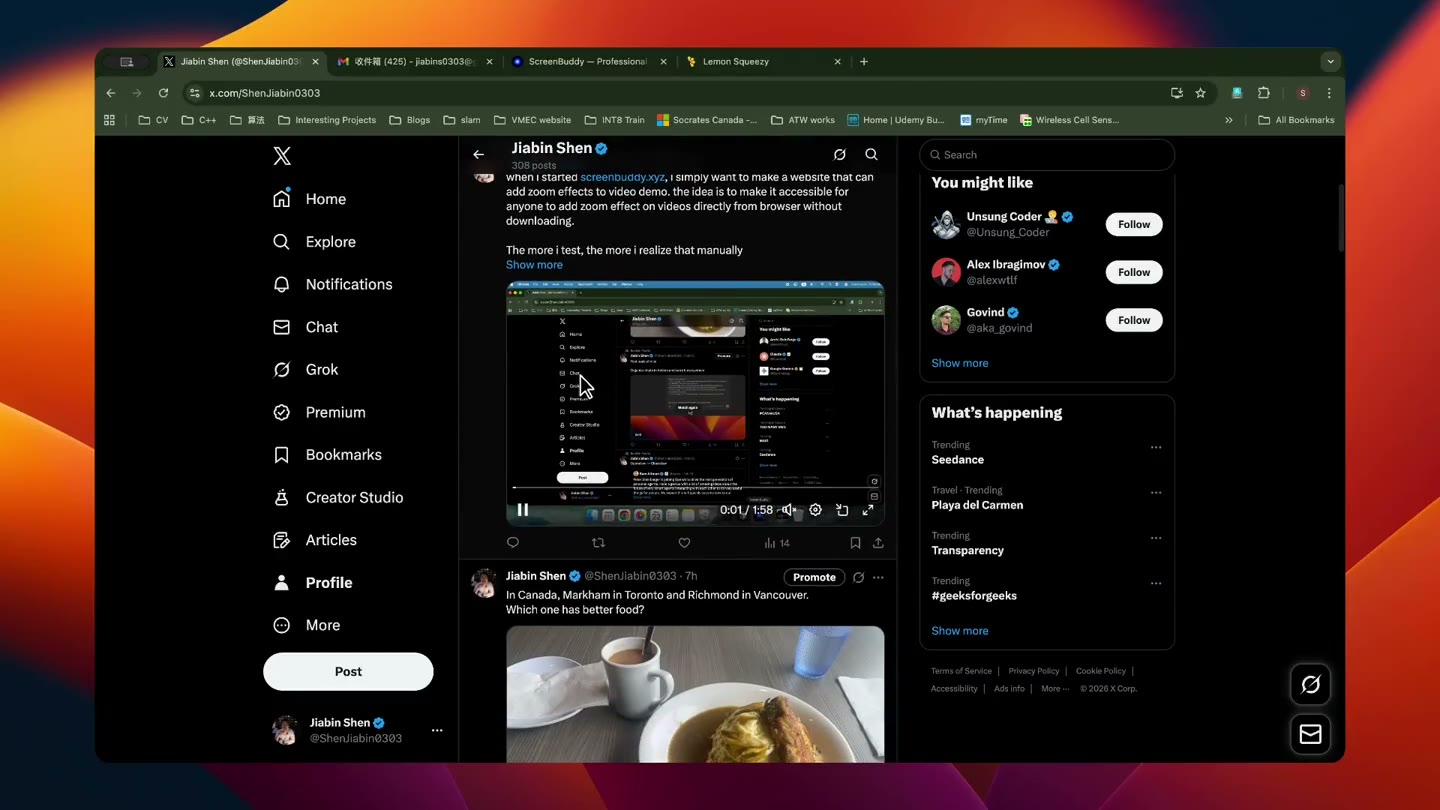
Record a clean source before adding motion
Close notifications, remove private data, choose one window or display, and rehearse the shortest path to the outcome. Record at a resolution that keeps text sharp, then make focus decisions in the edit. A clean source gives every zoom enough visual context and reduces the temptation to hide mistakes with motion.
- Keep the cursor still while explaining an outcome.
- Pause briefly after important clicks.
- Capture system audio and microphone only when the story needs them.
Use zoom as punctuation
A useful zoom answers “where should I look now?” Start after the action becomes relevant, hold long enough to read the control, and return to context before the next step. Avoid overlapping zooms, large jumps, and constant cursor chasing. Spotlight or lightbox can emphasize a region when camera movement would make the viewer lose orientation.
Check the Windows delivery size
Review the finished clip at the size where it will actually appear: a landing-page embed, a square social post, a documentation column, or a full-screen tutorial. Small text that looks fine in the editor may disappear in a narrow feed. Reframe the canvas or increase the focus level before adding more annotations.
Export only after a privacy pass
Play the complete timeline once for account names, tokens, notifications, browser history, and customer data. ScreenBuddy processes media on your device, but you still control where the exported file is uploaded. Internet access is required for license activation and update checks; the recording and editing workflow remains local.
Frequently asked questions
Does ScreenBuddy support Windows?
Yes. ScreenBuddy supports Windows 10 and later on x64 systems as well as macOS. Download the Windows installer from the platform-aware trial button.
Do Windows and Mac get the same features?
Yes. The record-and-edit workflow is the same on both, including the timeline-based attention effects and local AI caption generation. Windows also draws its own pointing-hand and I-beam cursors rather than Mac stand-ins.
Can I export during the free trial?
No. Record, edit, and preview free. A one-time license is required to save or export.
Turn the real recording into the launch video.
ScreenBuddy is a desktop studio for launch and product demo videos, on Mac and Windows. Order the scenes into a story, apply titles that follow your brand kit, and aim a physically modelled lens at the moment the product wins — every frame from footage of the real thing, never a generated impression of it. Record, edit, and preview free. A one-time license is required to save or export. Media processing stays on your device, while activation and update checks require internet access.