
Best Screen Recorder With Captions for Mac (2026)
If you are looking for a screen recorder with captions, the real question is not whether a tool can transcribe audio. It is whether the captions fit into the full recording workflow: capture the screen, clean up framing, review subtitle timing, export the video, and keep the transcript for reuse. That matters for product demos, tutorial videos, support walkthroughs, and any Mac recording that people will watch muted first.
Quick Recommendation
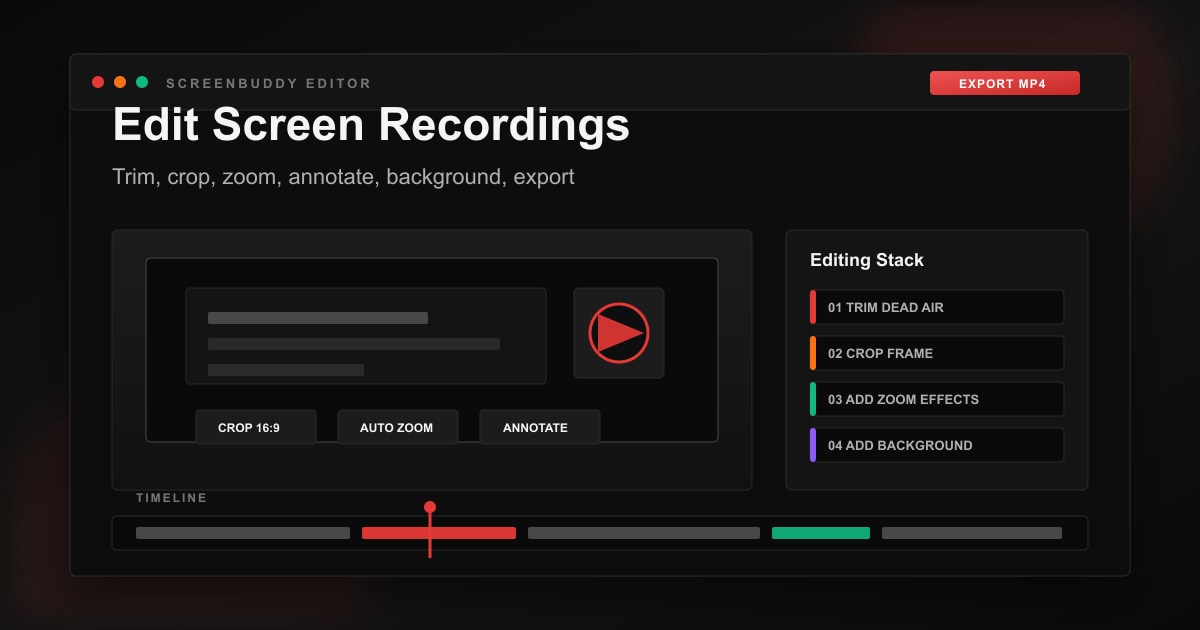
For a Mac workflow that starts with screen capture and ends with a publishable asset, ScreenBuddy is one option because it combines recording, local captions, timeline editing, zoom effects, backgrounds, annotations, and MP4/GIF export in one app.
If you only need a free recorder, OBS is a free capture option, but you should expect to add captions in a separate step afterward.
Why Captions Matter for Product Demos, Tutorials, and Support Videos
Captions preserve spoken instructions when sound is unavailable and help viewers find the meaning of an unfamiliar term. A support walkthrough, software lesson, and product demo all benefit from accurate text, but the delivery can differ: visible captions for a silent preview, or a selectable subtitle track in a hosted player.
That creates two jobs for your recording stack. First, it needs to capture clear narration. Second, it needs to keep the caption layer editable so you can align it with zooms, annotations, and scene timing. Tools that stop at transcription only solve half the problem.
What to Look for in a Screen Recorder With Captions
Editable captions
You need to fix names, trim filler words, and align lines to the exact moment a feature appears on screen.
Subtitle exports
SRT and VTT make the recording reusable across YouTube, docs, landing pages, and embedded players.
Visual polish
Captions work best when they sit on top of an intentional frame with zoom effects, backgrounds, and clean cropping.
One-pass workflow
The fewer handoffs between recorder, subtitle app, and editor, the faster your team can publish consistent videos.
Mac Screen Recorder With Captions Comparison
| Tool | Captions | Subtitle Export | Editing | Best For | Pricing Model |
|---|---|---|---|---|---|
| ScreenBuddy | Local captions on timeline | SRT, VTT | Built-in zoom, annotations, backgrounds, trim | Mac demos, tutorials, support videos | One-time purchase |
| Screen Studio | Local transcript and subtitles | Verify the required export in the current app | Zoom, cursor, and visual presentation | Mac demos and tutorials | Check current official offer |
| Loom | Transcription and closed captions | Check current plan and delivery options | Trim/stitch and transcript editing by plan | Hosted video messaging | Free and paid tiers |
| OBS Studio | No built-in caption workflow | No | Recording only | Free raw capture | Free |
How ScreenBuddy Handles Captions on Mac
The app covers the whole caption pass rather than bolting a transcript onto the end of it: local transcription, caption clips you can nudge on the timeline, subtitle export in SRT and VTT, plus the trim, zoom, annotation, background, and MP4/GIF export steps that usually live in a second application. Captions land in the same timeline as the zooms, so a cue never covers the thing it is describing.
Current build notes: automatic transcription covers recordings up to 30 minutes and runs on the device, with the bundled speech model shipping for Apple silicon, Intel Macs, and Windows. Writing and exporting captions works on all of them too.
- Record the walkthrough with mic audio and, if needed, system audio.
- Generate captions locally on any supported Mac or Windows machine, or type the cues in by hand, then review the caption clips on the timeline.
- Add zoom effects, backgrounds, and annotations so the captioned video still feels intentional and branded.
- Export the final MP4 plus SRT/VTT if you need closed captions elsewhere.
Related: SaaS demo video workflow | How to screen record on Mac with audio | Free subtitle generator
Choose visible captions, a subtitle track, or both
Visible captions are part of the picture, so they remain on screen when a video is played without sound or embedded in a player without a subtitle menu. A separate SRT or VTT file is text plus timing information; a compatible player can use it for a selectable caption track. These are different delivery choices. Uploading an MP4 and leaving a subtitle file on your desktop does not give the viewer closed captions. Before editing the entire clip, test the host or CMS with a short video and its subtitle file. Confirm whether viewers can turn captions on and whether the platform changes their appearance.
Record narration that is easy to transcribe
Choose the microphone before recording and make a short test with the terminology in your lesson. Listen for room echo, clipping, and a computer fan louder than your voice. A sentence containing a product name and an acronym is more useful than saying “test, test.” Reduce background music while you explain a step, and avoid speaking over another person or the app audio. Automatic transcription is working from the captured sound, so an absent microphone track cannot be repaired by generating captions again. Keep a written list of product names, abbreviations, and filenames to check during review.
Review wording separately from cue timing
Read the transcript once for meaning before adjusting presentation. Check negatives, numbers, units, names, and instructions that refer to a particular control. Then watch the video with captions and inspect when each cue appears and disappears. A correct sentence shown after the interface has moved on is still confusing. Break a long sentence at a useful phrase boundary rather than wherever a line happens to overflow. After trimming or rearranging material, review the affected cues again. This is especially useful for software lessons where one short phrase describes an action lasting only a moment.
Test captions against the busiest screen
A caption style that looks clear over the opening title may cover a menu later. Scrub through dialogs, tooltips, terminal output, and the final result, checking whether captions hide something necessary. Test at the embedded viewing size and in every aspect ratio you plan to publish. Keep the text treatment simple enough to read without pausing. If the narration describes a visible action only as “this” or “here,” improve the wording so it names the control. Captions cannot make an ambiguous instruction precise by themselves. For a reusable lesson layout, reserve a predictable caption area and verify it against the real footage.
Troubleshoot missing or drifting captions
If no useful text is generated, first listen to the source recording and check that the intended voice was captured. If only a technical term is wrong, correct that cue rather than regenerating the entire recording. If captions drift, identify whether the timing issue began after a cut, a speed change, or a move to another publishing system. Compare the local exported file with the hosted playback. If a separate subtitle file does not appear, check that the host accepted the format and attached it to the correct video. Use a short sample to isolate the failing step before repeating a long export.
Caption review is part of the publishing workflow
Keep the reviewed subtitle file with the exported video and editable project, using matching names so an older transcript is not uploaded with a newer edit. Describe important non-speech sounds when they carry information, and provide a written explanation alongside the video where it helps a reader complete the task. W3C’s captions guidance explains what captions should communicate and why automatic output needs review. These are practical publishing checks, not a promise that a particular recorder automatically satisfies every accessibility requirement. The destination player, the content, and your editorial review all affect what the viewer receives.
Sources and related workflows
See W3C guidance on captions, Screen Studio’s transcript features, and Loom’s plan-specific caption and editing features. ScreenBuddy capabilities are documented in the release history.
For a complete teaching workflow, use the Mac lesson recording guide. For repeated visual choices, follow the screen recording template recipes. To auto-time a pasted script into SRT or VTT, use the browser subtitle generator.
Frequently Asked Questions
What is the best screen recorder with captions for Mac?
For Mac users who need both recording and caption editing, the best choice is the one that handles capture, subtitle review, and export in one workflow. ScreenBuddy records on macOS, transcribes narration locally on the machine that recorded it, lets you adjust those caption clips on the timeline, and exports SRT or VTT alongside MP4 or GIF. The speech model ships for Apple silicon, Intel Macs, and Windows, so automatic transcription is not a Mac-only step. If you only need raw recording, OBS can capture the screen for free, but you still need a separate subtitle workflow afterward.
Can I add captions to a screen recording automatically?
Yes. Modern tools can transcribe narration automatically, then let you review and edit the generated captions before export. The practical difference is whether those captions live inside the editing workflow or require a separate app. A built-in workflow is faster for tutorials, SaaS demos, and support videos because you can align the captions with zooms, callouts, and scene timing in one pass.
Does ScreenBuddy support subtitle exports?
Yes. Subtitle export in SRT and VTT works on every supported platform, and so do generating captions from audio and writing or editing cues by hand. The bundled speech model ships for Apple silicon, Intel Macs, and Windows, and it runs entirely on the device — earlier releases shipped it for Apple silicon only. Automatic transcription covers recordings up to 30 minutes in the current build.
Why do captions matter for screen recordings?
A large share of product demos, tutorials, and social clips start muted. Captions preserve the meaning of your recording when the viewer has no sound, is skimming in Slack, or is comparing products quickly on a landing page. They also make the recording easier to reuse across docs, support centers, and video platforms that ingest subtitle files.
Can I add captions without installing a screen recorder?
Paste a script into the browser subtitle generator to auto-time an SRT or VTT. It does not transcribe audio or open a video file. Use ScreenBuddy when captions need to be generated from narration and aligned with zoom on the same timeline, then export SRT or VTT with the MP4.
Does a screen recorder with captions work on Windows as well as Mac?
ScreenBuddy transcribes locally on macOS 12+ (Apple silicon and Intel) and 64-bit Windows 10+. The speech model is English only in the current build. Confirm other vendors’ platform limits on their official pages rather than assuming a Mac caption workflow ports automatically.
Record, Caption, and Export in One Mac Workflow
ScreenBuddy combines screen recording, local captions, zoom effects, backgrounds, annotations, and MP4/GIF export without a subscription.
Download ScreenBuddy for Mac