Best OBS Studio Alternative for Video Editing 2026
OBS Studio is the gold standard for free screen recording and live streaming. With 71.3K GitHub stars and an average of 576 pull requests per month (Linux Foundation, 2026), it's one of the most actively maintained open-source projects around. But there's one gap that keeps surprising new users: OBS has no video editor.
If you've ever recorded a tutorial or product demo in OBS and wished you could add zoom effects, a clean background, and export it without opening Premiere Pro or DaVinci Resolve, you're not alone. The growing demand for all-in-one screen recording tools reflects a simple reality: most creators need editing, not just capture.
Key Takeaways
- OBS Studio is free and powerful for recording, but it has zero editing features
- Most tutorial and demo creators need editing features OBS doesn't provide
- OBS + a dedicated editor often beats a single tool for professional workflows
- Screen-recording-specific editors add zoom effects and backgrounds that general editors lack

Why Do People Look for OBS Studio Alternatives?
Despite its 71.3K GitHub stars and massive community, OBS Studio wasn't built for everyone. It excels at live streaming and multi-source recording, but it offers no editing tools for the tutorials and product demos that most creators need to produce. The complexity gap drives many users to seek alternatives.
Don't get us wrong. OBS is fantastic software. It's open-source, free, and incredibly powerful for what it does. But "powerful" often comes with "complex," and many users find themselves needing something simpler. What specific pain points push creators toward alternatives?
Steep Learning Curve
OBS was designed for power users. Understanding scenes, sources, transitions, audio filters, and encoding settings takes hours of learning before you record a single clip.
No Built-in Video Editor
This is the biggest gap. After recording in OBS, you need completely separate software to trim, add effects, or enhance your video. That means learning two apps instead of one.
Complex, Overwhelming UI
OBS's interface shows scene collections, source lists, audio mixers, scene transitions, and control docks all at once. For users who just need a simple workflow, it's intimidating.
Configuration-Heavy Setup
Getting optimal quality means configuring output resolution, encoder settings, bitrate, audio sample rate, and more. One wrong setting can ruin an entire recording session.
No Zoom Effects
OBS cannot add post-recording zoom effects to highlight areas of your screen. This is critical for tutorials and demos where viewers need to see small UI elements clearly.
Designed for Streaming, Not Editing
OBS's core purpose is live streaming. Screen recording is a secondary feature. If you're not streaming, most of the interface goes unused.
How Does ScreenBuddy Compare to OBS Studio?
OBS Studio is free and open-source with 71.3K GitHub stars (Linux Foundation, 2026), while ScreenBuddy costs $29.99 one-time. They solve fundamentally different problems: OBS records and streams, while ScreenBuddy edits and polishes. This table breaks down the key differences feature by feature.
| Feature | ScreenBuddy | OBS Studio |
|---|---|---|
| Primary Purpose | Screen recording editing | Live streaming & recording |
| Price | $29.99 One-Time | Free (open source) |
| Video Editor | Built-in with zoom & effects | No editor at all |
| Zoom Effects | Timeline-based zoom (1.25x-5x) | Not available |
| Custom Backgrounds | 18 gradient wallpapers | Not available |
| Setup Required | Simple install on macOS & Windows | Desktop install + configuration |
| Learning Curve | Minutes | Hours to days |
| Live Streaming | Not available | Twitch, YouTube, etc. |
| Multi-Source Recording | Single video input | Cameras, screens, capture cards |
| Audio Mixing | Basic | Advanced multi-track mixer |
| Export Formats | WebM, MP4, GIF | MKV, MP4, FLV, MOV |
| Privacy | 100% local processing | 100% local desktop processing |
What Are the Key Differences in Features?
Editing quality directly impacts whether a screen recording converts viewers or gets ignored. Raw screen recordings rarely hold attention, let alone drive action. Polished ones -- with zoom effects, clean backgrounds, and trimmed dead air -- do.
Ease of Use & Setup
OBS Studio requires downloading and installing a desktop application. After installation, you're greeted with an interface that includes scene collections, source panels, audio mixers, transition controls, and a settings panel with dozens of configuration options. It's powerful, but it takes time.
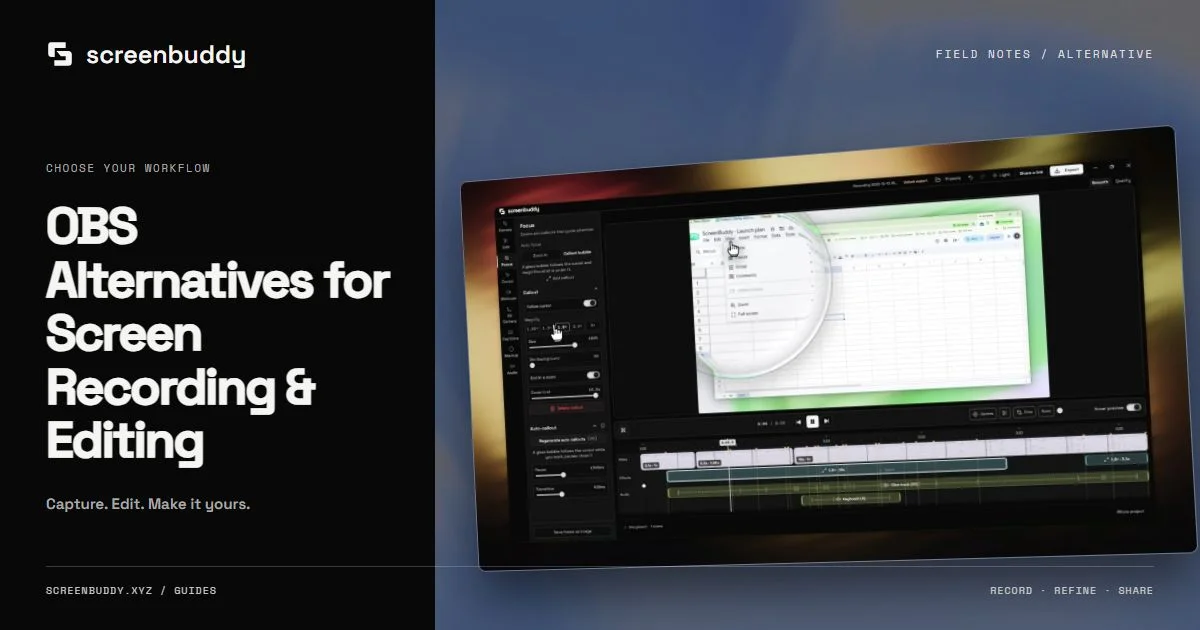
ScreenBuddy is a lightweight macOS app. Download, install, and start editing immediately. The interface shows exactly what you need: your video preview, a timeline for adding zoom effects, and sidebar controls for backgrounds and export options. In our testing, the entire workflow from opening a file to exporting a polished MP4 takes under two minutes.
The takeaway here is simple. OBS is designed for users who need granular control over recording and streaming setups. ScreenBuddy is designed for users who already have a recording and want to make it look professional, fast. Many creators use both: OBS to record, ScreenBuddy to edit.
Video Editing Capabilities
OBS Studio has absolutely no video editing capabilities. This is by design. OBS is a recording and streaming tool, not an editor. Once you hit "Stop Recording," your file is saved and that's it. No trimming. No effects. No backgrounds.
ScreenBuddy is purpose-built for editing screen recordings. Its standout feature is timeline-based zoom effects. Click anywhere on the timeline to add a zoom event that smoothly magnifies a portion of your screen from 1.25x to 5x. You can also add gradient wallpaper backgrounds with customizable padding and corner radius.
OBS records your screen. ScreenBuddy makes the recording look professional. They solve fundamentally different problems and work well together. Have you ever tried sending an unedited OBS recording to a client? The difference with polished output is striking.
Performance, Privacy & Platform Support
OBS Studio runs as a native desktop application on Windows, macOS, and Linux. It can use hardware encoding for high-performance recording with minimal CPU usage. Everything processes locally on your machine.
ScreenBuddy is a macOS application that also processes everything locally. Your videos never leave your device. Being a native app means excellent performance and deep integration with macOS. We've found that export times are consistently fast, even with multiple zoom effects layered on a long recording.
Both tools respect your privacy with local-only processing. OBS offers better raw performance for recording through hardware encoding. ScreenBuddy offers a focused editing experience optimized for macOS.
When Should You Use OBS vs an Alternative?
Choosing the right recording and editing workflow depends entirely on your use case. OBS and dedicated editors like ScreenBuddy serve different purposes, and many creators use both. Here's a practical decision guide to help you pick the right tool, or decide to combine them.
Use OBS When You Need:
- Live streaming to Twitch, YouTube, Facebook, or any RTMP endpoint. OBS's scene management and real-time encoding are purpose-built for this.
- Multi-source recording where you combine webcam feeds, screen captures, browser sources, and capture card inputs into a single output.
- Complex audio mixing with multiple independent tracks. Desktop audio, microphone, game audio, and music each on separate channels for post-production flexibility.
- Professional broadcast setups with custom transitions, overlays, green screen chroma keying, and real-time scene switching.
Use ScreenBuddy When You Need:
- Product demos and tutorials where clarity matters. Zoom into buttons, menus, and form fields so viewers never lose track of where you're clicking.
- Auto-zoom on clicks that automatically magnifies the area around your cursor whenever you interact with the UI.
- Polished exports with gradient backgrounds that transform a raw desktop capture into a presentation-ready video.
- Quick record-and-edit workflows where you go from raw footage to finished video inside a single app.
- Async communication for Slack, pull request walkthroughs, documentation, and team updates where a polished two-minute video replaces a lengthy email thread.
Use Both Together
Many creators get the best results by combining both tools. Record complex multi-source setups in OBS: webcam overlay, screen capture, and microphone audio. Then import the finished recording into ScreenBuddy for post-production. Add zoom effects to highlight key moments, apply a gradient background, trim dead time, and export a polished MP4. OBS handles the capture. ScreenBuddy handles the polish.
What Are OBS Studio's Limitations for Tutorial Creators?
Screen recordings are one of the most common video formats for tutorials, product demos, and documentation. Yet OBS Studio, built primarily as a live-streaming compositor, lacks several features these creators need most. Here are the specific limitations that tutorial creators run into.
No Post-Recording Zoom Effects
When you record a tutorial in OBS, the entire screen is captured at a fixed zoom level. There's no way to go back and add zoom-in effects to highlight a specific button, dropdown menu, or code snippet. Viewers watching a full-screen recording often struggle to follow small UI interactions, exactly the moments that matter most. ScreenBuddy solves this with timeline-based zoom effects from 1.25x to 5x magnification.
No Background Customization
OBS recordings show your raw desktop exactly as it appears. Cluttered dock, notification badges, messy wallpaper, all of it. There's no option to wrap your recording in a clean gradient background or add padding around the captured content. Professional tutorial videos use backgrounds to draw attention to the content area and create a polished, branded look.
No Annotation Tools
OBS has no way to add text labels, arrows, or image overlays to a recorded video. Want to annotate a step in your tutorial with a "Click here" arrow or a numbered callout? You'll need a separate video editor. ScreenBuddy includes built-in annotation tools so you can add text, arrows, and images directly on the timeline.
Complex Export Configuration
Exporting from OBS means configuring bitrate, encoder (x264, NVENC, QuickSync), container format (MKV, MP4, FLV), audio bitrate, and keyframe interval. Choosing the wrong combination produces files that are either too large, too low quality, or incompatible with your target platform. Why should exporting a tutorial require a settings checklist?
No Trim or Crop Without Separate Software
OBS records from the moment you press "Start Recording" to the moment you press "Stop." There's no built-in way to trim the beginning, cut the end, or remove a section in the middle. You can't crop the frame to focus on a specific application window. Any of these basic editing tasks require importing your file into a separate editor.
Note: According to OBS Project documentation, OBS Studio is designed primarily as a streaming and recording compositor, not a video editor. These limitations are by design, not bugs.
Which Editing Features Does OBS Lack?
Raw unedited recordings are no longer enough for tutorials and product demos. Screen-recording-specific editors add features that general-purpose tools like Premiere Pro or DaVinci Resolve don't prioritize. Here's what you can do with a dedicated editor that OBS simply doesn't offer.
Auto-Zoom on Clicks
Auto-zoom automatically detects cursor clicks and magnifies that region from 1.25x to 5x. Viewers see exactly what you're clicking without squinting at a full-screen recording.
Spotlight Effect
Dim the surrounding area and spotlight a specific region of your screen to guide viewer attention. It's perfect for drawing focus to a specific panel, dialog, or code block during a walkthrough.
Lightbox Effect
Pop up a zoomed-in region as an overlay on top of the full recording. Viewers get both the context of the full screen and the detail of a close-up simultaneously. It's a technique you'll see in polished SaaS demo videos.
18 Gradient Backgrounds
Choose from 18 gradient background presets or upload a custom image. Add padding and rounded corners to frame your recording in a clean, branded presentation.
Text, Arrow & Image Annotations
Add text labels, directional arrows, and image overlays directly on the video timeline. Annotate steps, highlight important areas, and add visual cues without switching to a separate tool.
Timeline-Based Keyframe Editor
Place zoom events, annotations, and effects at precise points on a visual timeline. Drag keyframes to adjust timing. Preview changes in real time before exporting.
One-Click MP4 Export
Export your finished video as MP4 or GIF with a single click. Choose from multiple aspect ratios (16:9, 4:3, 1:1, 9:16) to match your target platform: YouTube, Twitter, LinkedIn, or vertical mobile.
What Does an OBS Alternative Actually Cost?
OBS Studio is free, but since it has no editor, you'll need separate editing software. Pricing for editing tools varies wildly, from free to hundreds per year. Here's what the real cost looks like when you factor in the editing tool you'll inevitably need.
OBS + Free Editor
OBS Studio + DaVinci Resolve (free tier)
- Two separate apps to install and learn
- DaVinci Resolve has a professional-grade learning curve
- No zoom-on-click or gradient backgrounds
- Manual import/export between tools
OBS + Paid Editor
OBS + Premiere Pro ($22.99/mo) or Final Cut Pro ($299)
- Premiere Pro: $275.88/year (subscription)
- Final Cut Pro: $299 one-time
- Powerful but extreme overkill for screen recordings
- No screen-recording-specific features like auto-zoom
ScreenBuddy
One-time payment. Recording + editing included.
- Built-in screen recorder + editor in one app
- Auto-zoom, backgrounds, annotations included
- No subscription, no renewal fees
- Free updates included
OBS is free for recording, but you'll spend $0 to $300+ on editing software that still lacks screen-recording-specific features. ScreenBuddy gives you everything for $29.99, once.
How Do You Combine OBS and ScreenBuddy for the Best Workflow?
Rather than choosing between OBS and a dedicated editor, many creators get the best results by using both tools together. OBS handles the recording; a dedicated editor handles zoom effects, backgrounds, and trimming. Here's the recommended workflow for creating professional tutorial videos.
Record in OBS
Use OBS Studio for high-quality screen recording with your preferred settings and sources.
Open in ScreenBuddy
Open ScreenBuddy on your Mac and drag-and-drop your OBS recording file.
Add Zoom Effects
Click on the timeline to add zoom events that highlight key moments in your recording.
Style & Export
Choose a gradient background, adjust padding, and export as WebM or MP4.
This workflow gives you the best of both worlds. OBS's powerful recording capabilities combined with ScreenBuddy's intuitive editing and visual effects. In our experience, this pipeline cuts post-production time by half compared to using a general-purpose editor like Premiere Pro.
Who Should Choose What?
OBS Studio has 71.3K GitHub stars and a massive community of contributors (Linux Foundation, 2026). It's the right choice for streaming and complex recording setups. But if your primary need is editing screen recordings with zoom effects and backgrounds, a dedicated editor is the better fit.
Use OBS Studio if:
- You need to live stream to Twitch, YouTube, or other platforms
- You require multi-source recording (webcam + screen + overlays)
- Advanced audio mixing with multiple tracks is important
- You want full control over encoding settings and output quality
- You're comfortable with a steeper learning curve for more power
Ideal for: Live streamers, gamers, professional broadcasters
Use ScreenBuddy if:
- You want to edit screen recordings with zoom effects and backgrounds
- You need a simple macOS app that works in minutes
- You create tutorials, demos, or educational content that needs polish
- You want to enhance OBS recordings without learning Premiere or Resolve
- Privacy matters, all processing stays on your device
Ideal for: Tutorial creators, educators, product marketers, freelancers
Pro tip: Use both. Record with OBS Studio, then edit and polish with ScreenBuddy. OBS is free for recording. ScreenBuddy is just $29.99 for editing.
Frequently Asked Questions
What is the best OBS Studio alternative for video editing?
For screen recording editing specifically, tools like ScreenBuddy fill OBS Studio's biggest gap: no built-in video editor. OBS excels at recording and live streaming, but it has no editing features. You need a dedicated editor for zoom effects, gradient backgrounds, trimming, and polished exports.
Can ScreenBuddy replace OBS Studio?
ScreenBuddy complements OBS rather than fully replacing it. OBS Studio, with 71.3K GitHub stars, excels at live streaming and complex multi-source recording. ScreenBuddy is designed for post-recording editing. Many users record with OBS and edit with ScreenBuddy for the best results.
Is ScreenBuddy easier to use than OBS Studio?
Yes, significantly. OBS Studio has a steep learning curve with complex scene management and dozens of settings. ScreenBuddy has a simple interface: open your recording, add zoom effects, choose a background, and export. Most users are editing within 30 seconds.
Does OBS Studio have a built-in video editor?
No. OBS Studio is designed for recording and live streaming only. According to the OBS Project documentation, it is a streaming and recording compositor, not a video editor. You need separate software to trim, add zoom effects, or apply backgrounds to your recordings.
How much does an OBS alternative cost compared to free OBS?
OBS is free but has no editor. ScreenBuddy costs $29.99 one-time. By comparison, Premiere Pro runs $22.99/month ($275.88/year) and Final Cut Pro costs $299. Dedicated screen recording editors combine recording and editing at a fraction of what general-purpose video editors charge.
Can I edit OBS recordings in ScreenBuddy?
Yes. ScreenBuddy can edit any screen recording file, including those recorded with OBS Studio. Open your OBS recording, add zoom effects to highlight key moments, apply a custom gradient background, and export as MP4. The entire process typically takes under two minutes.
Related Articles
Loom vs OBS Studio
Cloud-based simplicity vs open-source power, compared for 2026.
OBS vs Camtasia
Free open-source vs $250+ paid editor for screen recordings.
Best Screen Recorder for Mac
Top 7 Mac screen recorders compared in 2026.
Zoom Effects Guide
Learn to add professional zoom effects to your recordings.
Ready to Edit Your Screen Recordings Like a Pro?
Record with OBS, edit with ScreenBuddy. Add zoom effects, custom backgrounds, and professional polish for just $29.99 one-time.